Windows Autopatch: Implementation how-to

Everyone has heard of Windows Autopatch, yet I have never gotten around to writing a blog about it. While browsing Reddit today, I came across someone who was still struggling with how to implement Autopatch despite having read numerous blogs. That seems like a good reason to write one myself, doesn’t it? So, here is my perspective on implementing Windows Autopatch.
What is Autopatch?
Windows Autopatch is a cloud-based service from Microsoft designed to simplify and automate the update process for Windows, Microsoft 365 Apps, Microsoft Edge, and Microsoft Teams.
At its core, Autopatch reduces operational overhead by using deployment rings, including a test group and gradually expanding to ensure updates are safe and stable before reaching all devices. This approach helps minimize user disruption, maintain strong security baselines, and keep organizations productive with the latest features.
By leveraging cloud intelligence, Autopatch continuously monitors update health and can pause or adjust rollouts automatically if issues arise. This makes it an ideal solution for organizations looking to modernize endpoint management, reduce manual workloads, and enhance overall security posture.
Ring based deployment
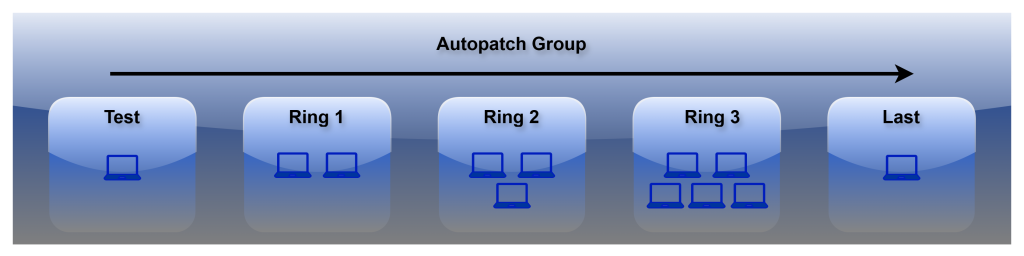
For most organizations, using ring-based deployment is advisable. The number of rings needed varies depending on the organization. I suggest having at least three rings in addition to the test and final rings.
The test and final ring are handled manually. Autopatch generates Entra ID Groups that can be populated with devices, making them members of that particular group. IT staff must determine which devices should get updates first for testing. Critical devices might be placed in the last ring, meaning they receive updates as late as possible, based on your deferral and deadline settings.
Windows Autopatch dynamically manages Ring 1, Ring 2, and Ring 3. Devices are assigned to these groups randomly according to a set percentage for each ring. Nevertheless, devices can still be transferred to a different ring if needed.
- Test ring: includes a subset of non-critical devices.
- Ring 1: consists of a small group of devices.
- Ring 2: includes slightly more devices than ring 1.
- Ring 3: encompasses all devices not included in the previous rings.
- Last ring: contains highly critical devices used in production, VIPs, and similar.
Configure Autopatch
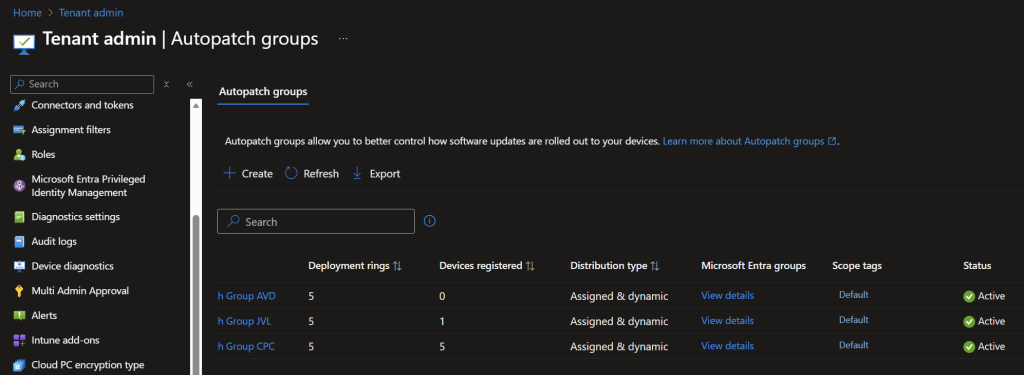
Configuring autopatch is quite easy and straightforward. There are some suggestions to consider when setting up Autopatch from the beginning. It is advisable to create an Autopatch group for each type of workplace (for example, Cloud PCs, Kiosks, Modern Workplaces, Developer Devices). This leads to multiple Autopatch groups, each including particular devices. This approach provides more detailed control over the update process for each device category.
Basics: Create an Autopatch Group
Navigate to Tenant administration -> Autopatch groups -> Create
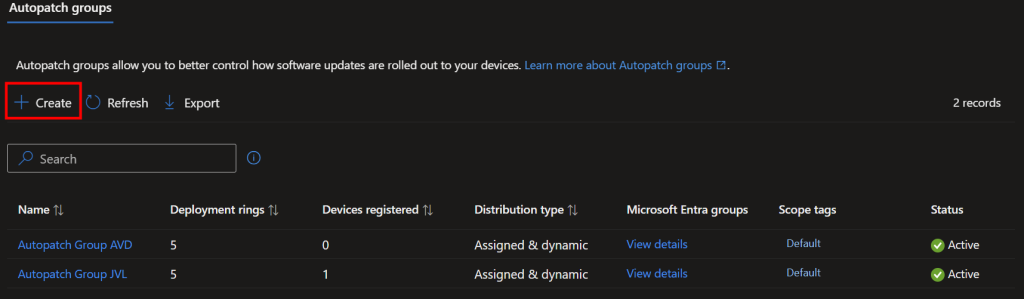
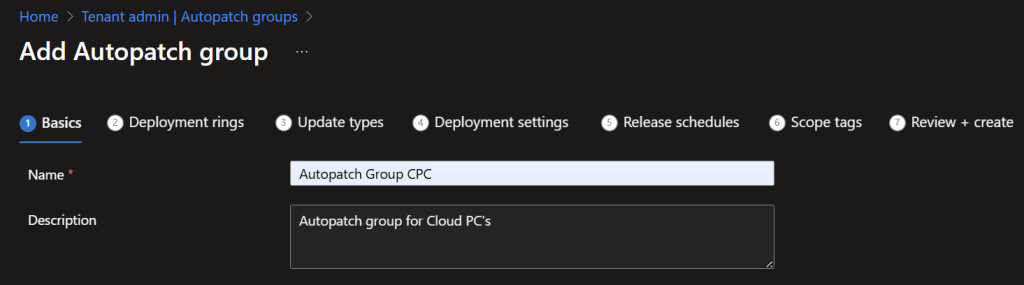
Assign a name to the Autopatch group. This name is also used for the necessary Entra ID groups, which are automatically generated when the Autopatch group is created.
Deployment rings
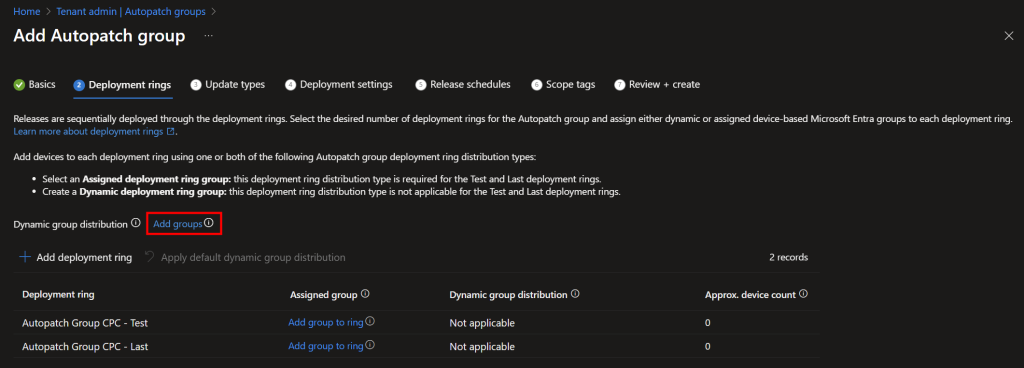
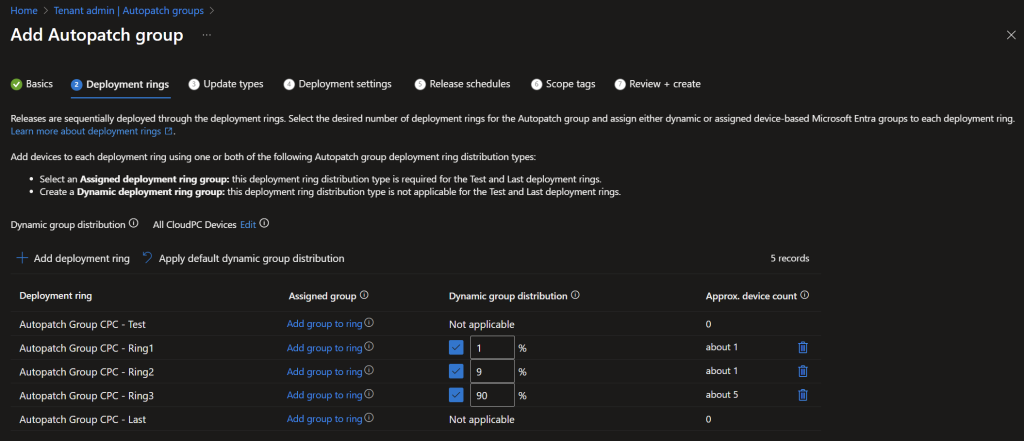
Click on Add group. Choose a group that includes all devices associated with this particular Autopatch group. For instance, a dynamic Entra ID group that encompasses all Windows 365 Cloud PCs. This group acts as the top-level group, which is then used to distribute all devices randomly across the deployment rings within this Autopatch group. The devices within this group are being registered in the Windows Autopatch service.
This group may also consist of devices that are manually included in the Test or Last group. Autopatch manages these types of conflicts manually, which I will explain later.
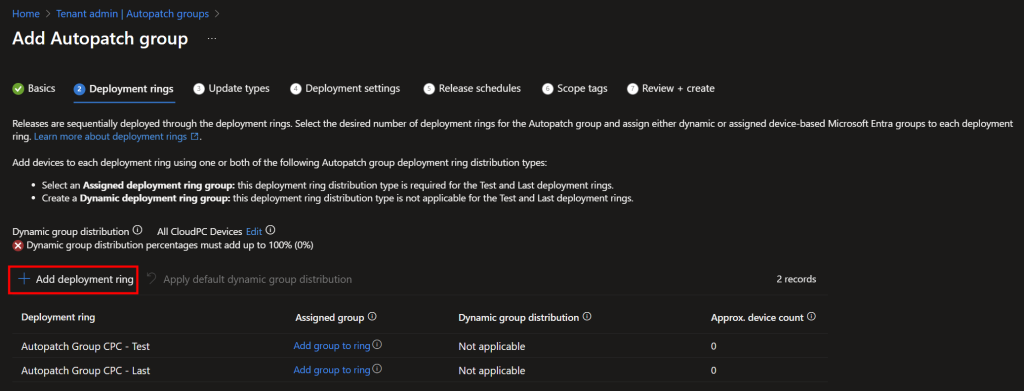
Ignore the error message about dynamic distribution percentages. This error will go away after the deployment rings have been set up. Press Add deployment ring several times. Each press adds an additional deployment ring. In this example, there are three deployment rings. Once more, do not worry about the errors displayed.
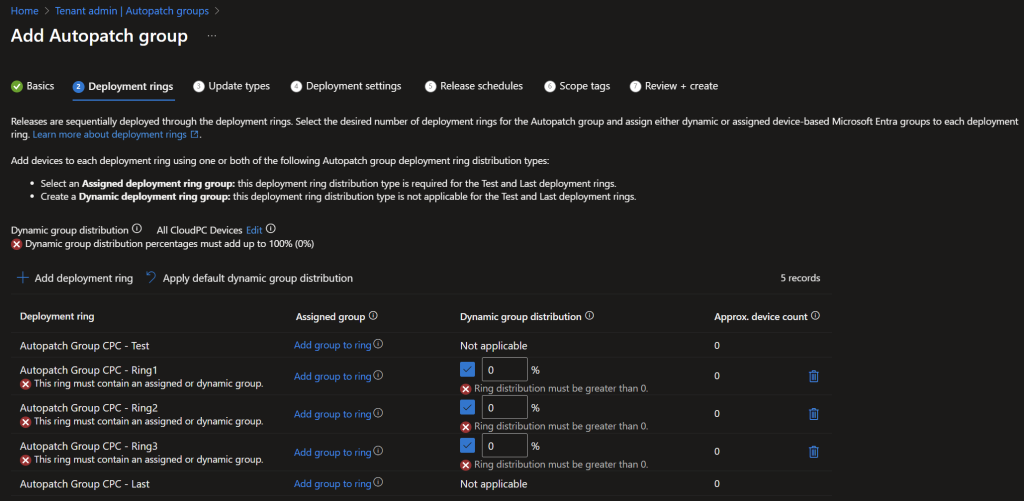
As previously mentioned, the deployment rings are randomly populated with devices that belong to the group chosen at Dynamic group distribution. When you click Apply default dynamic group distribution, the three rings are divided into 1% of devices in Ring 1, 9% in Ring 2, and 90% in Ring 3. You can manually adjust these percentages to suit your specific needs. For instance, 5/10/85, 10/10/80, 10/20/70, and so on. As long as the total adds up to 100% across all the deployment rings you have set up.
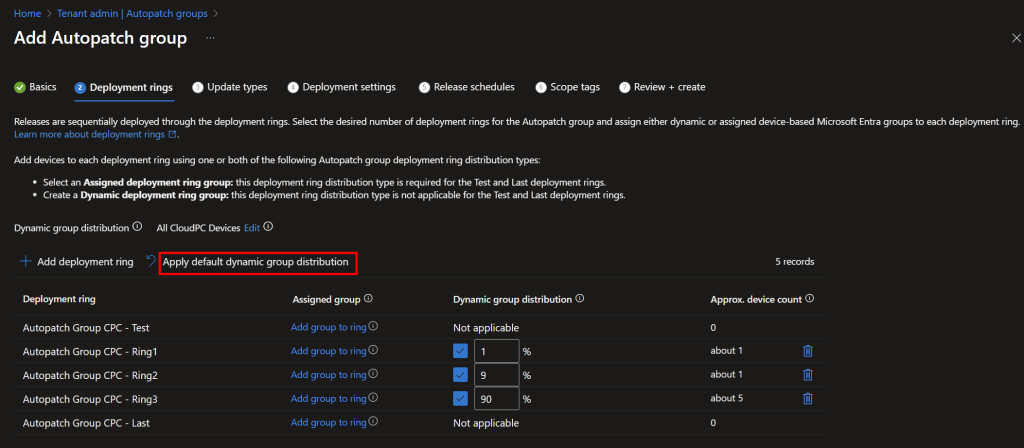
As mentioned earlier, Autopatch generates Entra ID groups for each deployment ring, including the Test and Last rings. It is unnecessary to assign these groups to the deployment rings manually. The Autopatch Services recognize these groups and manage the devices within them according to the autopatch configuration. Nevertheless, you can add additional static groups to each deployment ring, although this may complicate understanding and potentially cause conflicts.
I would rather keep it as straightforward as possible, as demonstrated in the screenshot below. Only include the test, last, and dynamic rings, without any extra static assignments.
Conflicts
Autopatch groups use the following logic to solve device conflicts on your behalf within an Autopatch group:
- For example, if a device is part of one deployment ring with Dynamic distribution (Ring3), and one deployment ring with Assigned distribution (Test) within the same Autopatch group, the deployment ring with Assigned distribution (Test) takes precedence over the one with the Dynamic distribution type (Ring3).
- For example, if a device is part of one deployment ring with Assigned distribution (Test), and in another deployment ring with Assigned distribution (Ring3) within the same Autopatch group, the deployment ring that comes later (Ring3) takes precedence over the deployment ring that comes earlier (Test) in the deployment ring order.
Details on how Autopatch resolves these conflicts can be found here: https://learn.microsoft.com/en-us/windows/deployment/windows-autopatch/manage/windows-autopatch-manage-autopatch-groups#manage-device-conflict-scenarios-when-using-autopatch-groups
Update types
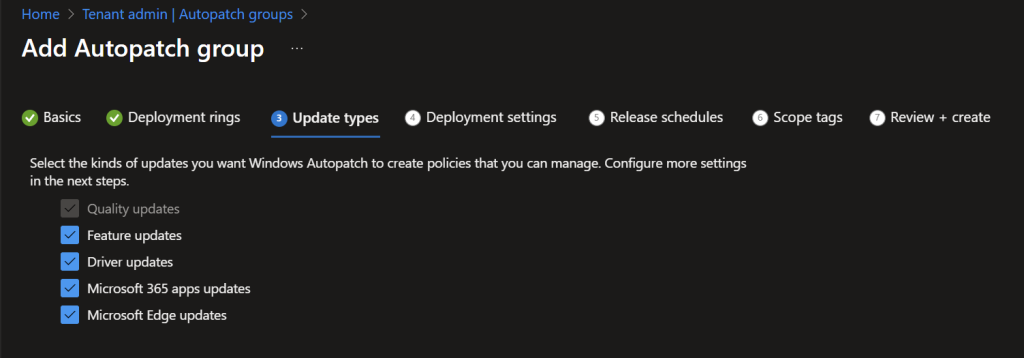
Based on your requirements, you can choose to include or exclude certain types of updates. I would rather include all updates and allow Autopatch to manage the updating process. Some organizations may apply patches differently for some of these, which allows you to exclude particular types if needed.
Deployment settings
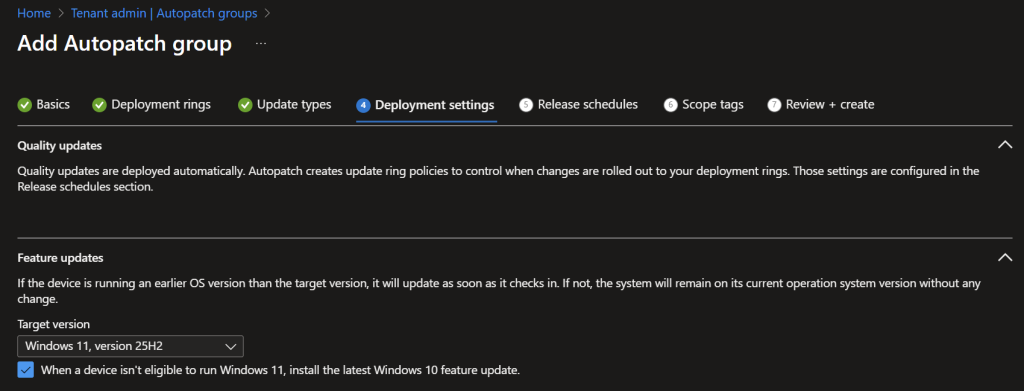
The Deployment settings section is being used to configure what and how certain updates are being deployed.
Feature update: Select the required Feature update for the devices within this Autopatch group
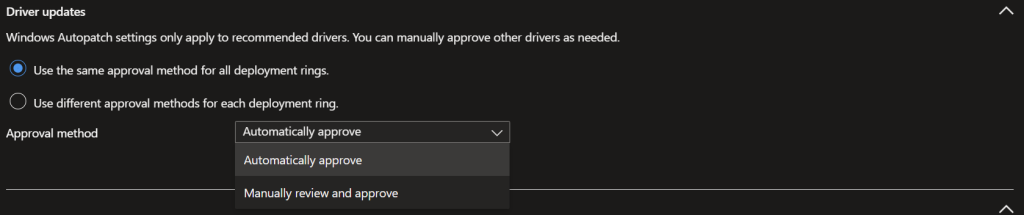
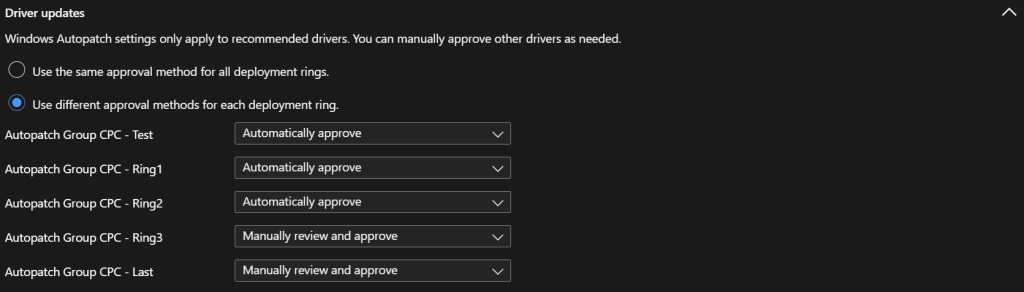
Driver updates: Pick your desired method. Manually approve drivers or let Autopatch approve driver updates automatically. There’s also an option to split driver updates per deployment ring.
- Use the same approval method for all deployment rings: Pick Manually or Automatically
- Use different approval methods for each deployment ring: Pick Manually or Automatically per Ring
Manually approving driver updates on your largest and most critical devices could be beneficial.
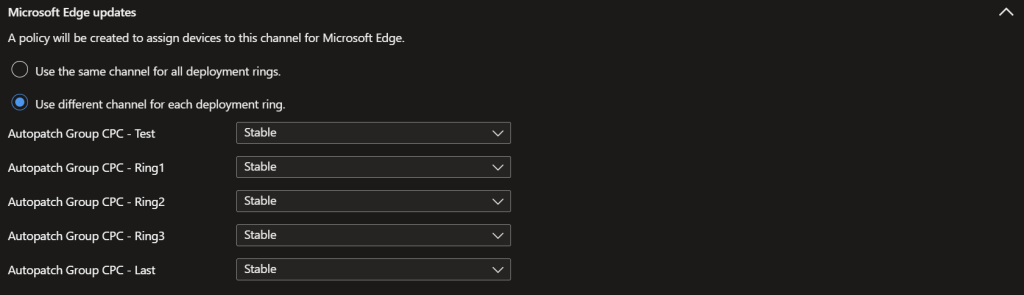
Microsoft Edge updates: Pick your desired method. Use the same update channel for all Rings or split Edge updates per deployment ring.
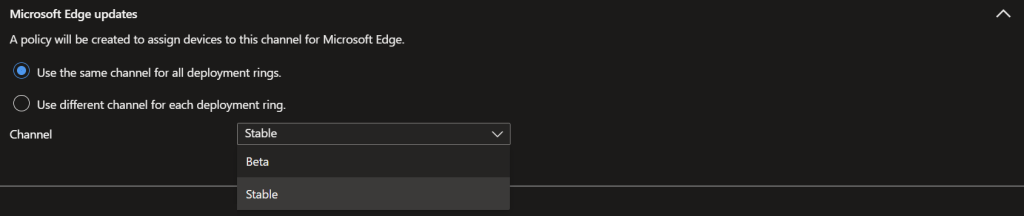
- Use the same channel for all deployment rings: Pick Beta or Stable
- Use different channel for each deployment ring: Pick Beta or Stable
Using a beta channel on your test devices could be beneficial. However, remember that beta versions may still present problems. Since your test devices might also serve as production devices for their users, this could affect their experience with the Edge browser.
Release schedules
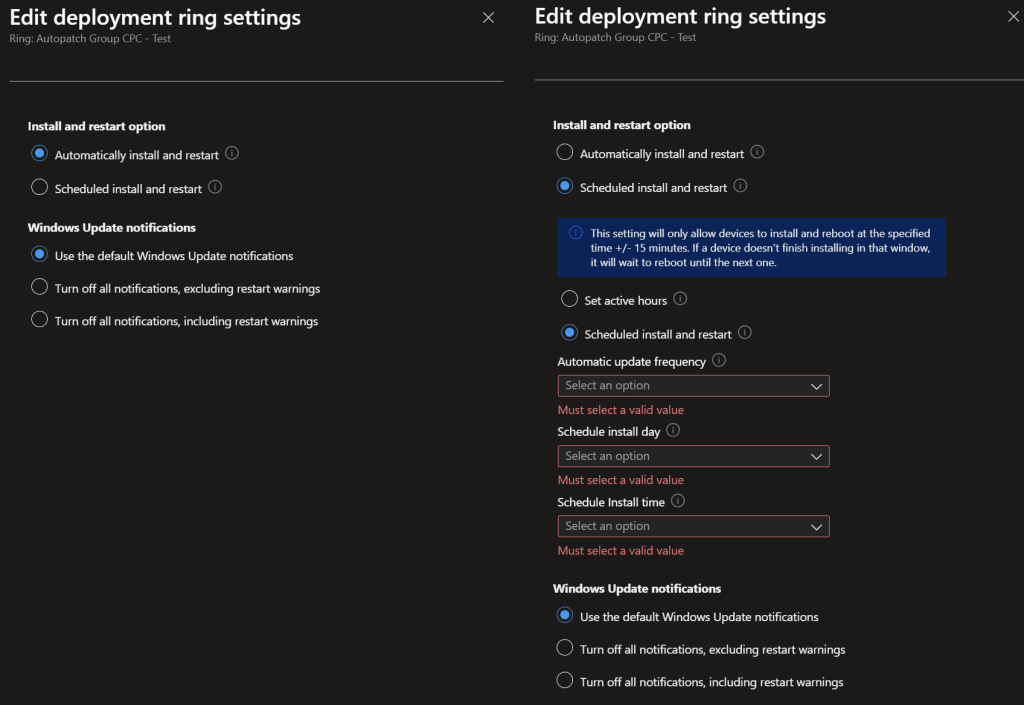
Windows update installation, reboot and notification behavior can be modified for each ring. There are numerous choices to consider, and I am unable to determine which would be best suited for your organization, devices, or rings.
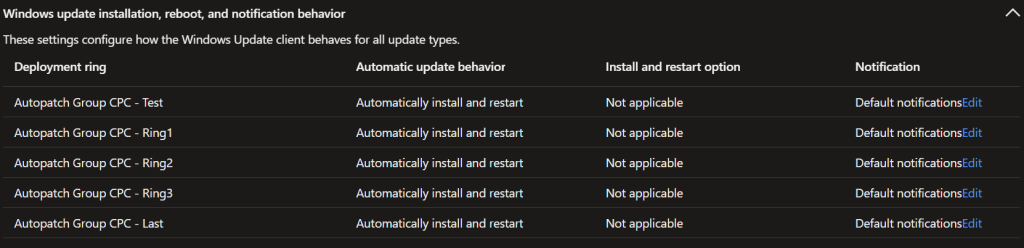
Windows update installation, reboot and notification behavior: offers several choices to control this process. It could be beneficial to configure a separate update schedule for devices that are critical to business operations.
- Automatic update frequency:
- Every week
- First week of the month
- Second week of the month
- Third week of the month
- Fourth week of the month
- Schedule install day:
- Any day
- Monday
- Tuesday
- Wednesday
- Thursday
- Friday
- Saturday
- Sunday
- Schedule install hour:
- Every hour between 12:00 AM and 11:00 PM
You may choose to adjust the notification settings if you wish. I tend to stick with the default notification settings myself. There are cases where disabling notifications could be beneficial. However, I generally advise against turning off restart warnings. Disabling them might be practical for devices that display information or function as kiosks.
- Use the default Windows Update notifications
- Turn off all notifications, excluding restart warnings
- Turn off all notifications, including all restart warnings
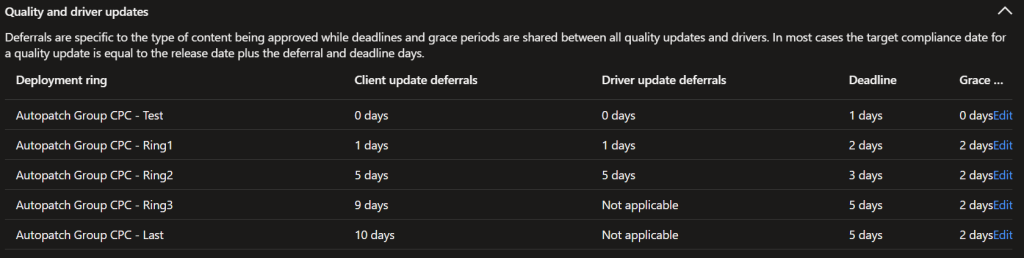
Quality and driver updates: Deferrals are specific to the type of content being approved while deadlines and grace periods are shared between all quality updates and drivers. In most cases the target compliance date for a quality update is equal to the release date plus the deferral and deadline days.
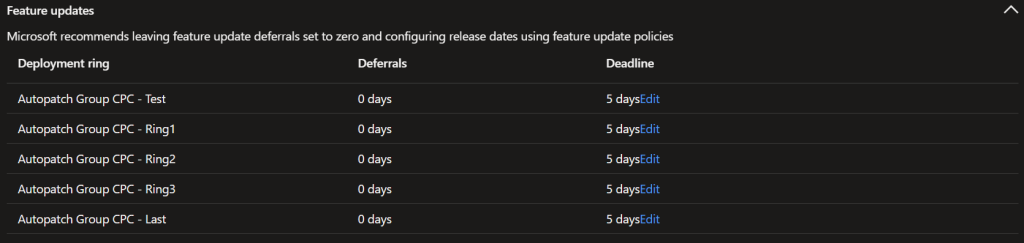
Feature updates: Microsoft recommends leaving feature update deferrals set to zero and configuring release dates using feature update policies
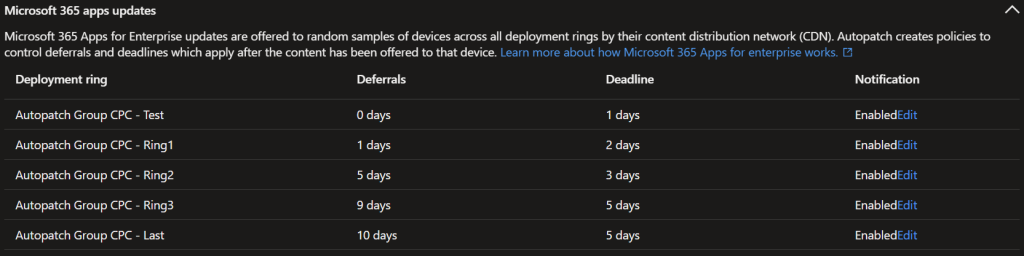
Microsoft 365 apps updates: Microsoft 365 Apps for Enterprise updates are offered to random samples of devices across all deployment rings by their content distribution network (CDN). Autopatch creates policies to control deferrals and deadlines which apply after the content has been offered to that device.
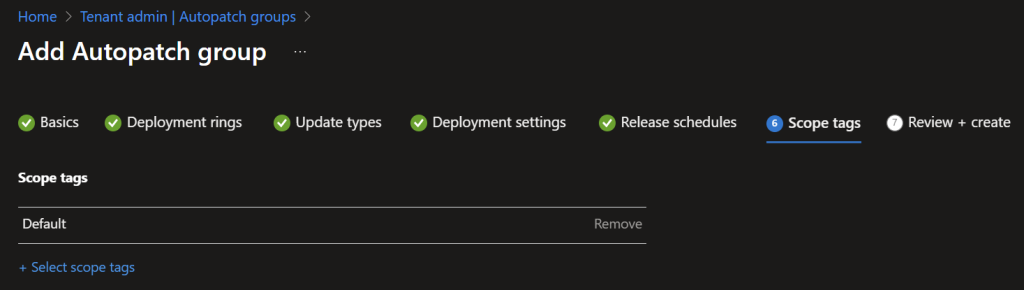
Scope tags
Optionally select scope tags if used in your environment.
Review and create
Review all the settings you have configured. If they align with your desired setup, you can move forward. Click Create to finalize the deployment. That’s essentially all there is to it! Your devices are now managed by Windows Autopatch through the newly established Autopatch group. You can follow these steps again for each device type within your organization.
Test & Last devices
Lastly, make sure to include some devices in both the test and final groups! A quick reminder that this process needs to be done manually. Although using these rings is not mandatory, it is strongly advised to use at least the test ring!
Bonus content
Moving devices across Update Rings
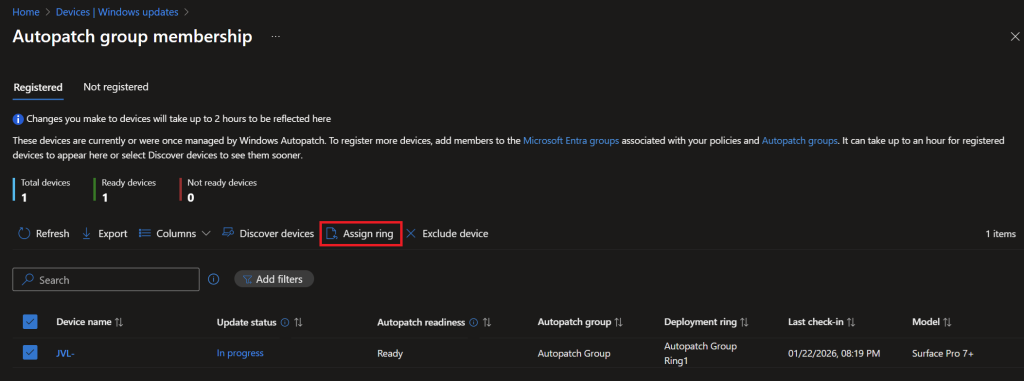
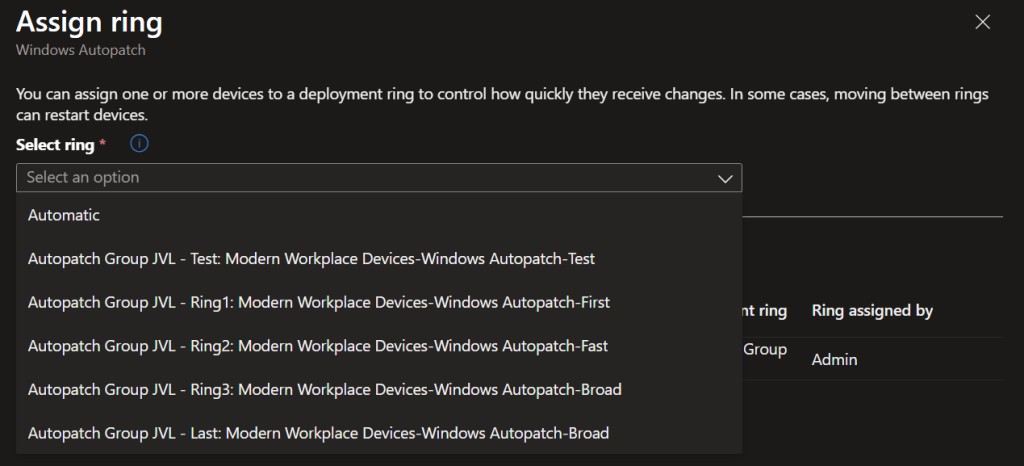
You may need to transfer devices between the three dynamic update rings. For example, if you want to shift a particular device from ring 1 to ring 3, you can accomplish this by using the Autopatch Groups Memberships blade.
Navigate to Devices -> Windows updates -> Autopatch Groups Memberships
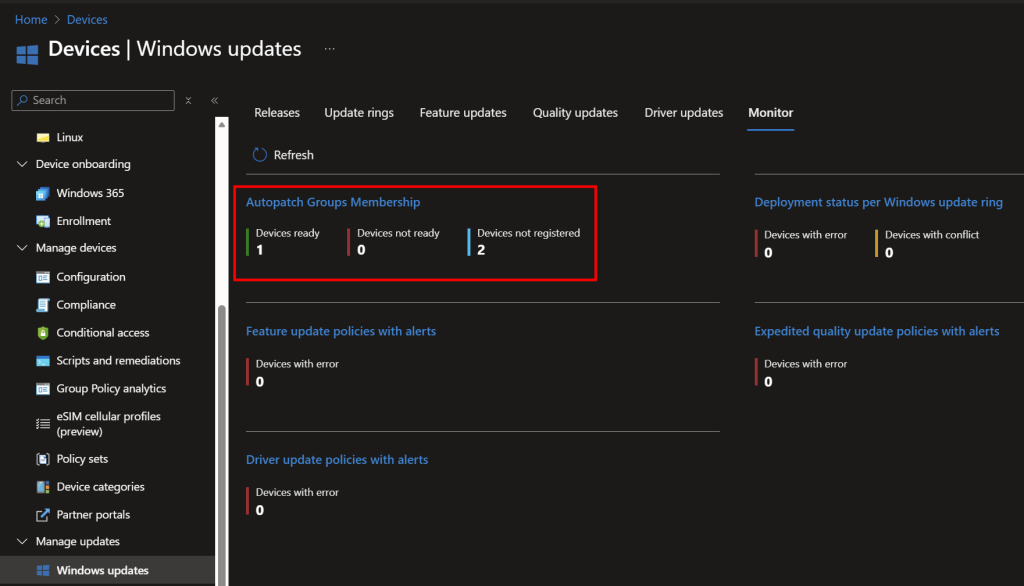
Choose the particular device, click on Assign ring, and select the update ring you want for that device. This device is now being transferred from the Entra ID group X to group Y.
Written by Joey Verlinden
Back to all articles