Launch Remote Apps & Desktops automated via Windows App

Since the classic Remote Desktop Client is approaching end-of-life, it’s time to transition to the Windows App for accessing RemoteApps and remote desktops. Microsoft has committed to bringing over all the key features from the Remote Desktop Client. One of those being the Windows App equivalent of the MS-RD: protocol, which many organizations rely on for automation.
There are scenarios where you may want to minimize user interaction within the Windows App. For example, you might want to streamline the experience by launching a specific desktop or RemoteApp automatically, saving users several clicks in the process.
If you’re looking for a command-line method to open a required desktop or remote application directly without users navigating through the Windows App interface this guide will walk you through exactly that.
ms-avd:connect locates a specified Azure Virtual Desktop resource and initiates the RDP session, directly connecting a specified user to that resource. It requires a specifically generated cmdlet in order to launch the correct specific desktop or RemoteApp.
Example: ms-avd:connect?workspaceId=b5962f1b-gd45-424c-4ch0-e244b484ac29&resourceid=5f63d213-b188-4b42-8212-08ed84a6926&username=firstname.lastname@domain.com&version=0
Identifying the WorkspaceId and ResourceId isn’t as straightforward as you might expect. To retrieve these values from your Azure Virtual Desktop environment, we’ll need to rely on PowerShell, as they aren’t exposed directly through the Windows App interface or Azure Portal.
Workspace Id
First, we’ll retrieve the Workspace ID. To do this, you’ll need to run **Connect-AzAccount** and sign in to your Azure tenant with the appropriate permissions. Make sure to update the example below with the correct workspace name and the resource group where that workspace resides. Finally, write down the Workspace Id from the output.
Connect-AzAccount
#Get Workspace ID $workspace = Get-AzWvdWorkspace -Name “ws-name” -ResourceGroupName “rg-ws” $WorkspaceID = $workspace.ObjectID Write-Host -ForegroundColor Green “You’re Workspace Id is: $WorkspaceId”
Remote App Id
For Remote Apps, we’ll need to retrieve the Remote App ID. To do this, you’ll need to run **Connect-AzAccount** and sign in to your Azure tenant with the appropriate permissions. Make sure to update the example below with the correct Resource Group Name and the Application Group Name. Finally, write down the Workspace Id from the output.
Connect-AzAccount
#Get Remote App ID $RaResourceGroupName = “rg-remoteapp” $RaApplicationGroupName = “ag-remoteapp” $raApp = Get-AzWvdApplication -ApplicationGroupName $RaApplicationGroupName -ResourceGroupName $RaResourceGroupName $RaObjectID = $raApp.ObjectId $RaName = $raApp.Name Write-Host -ForegroundColor Green “Application $RaName App Id is: $RaObjectID”
Desktop App Id
For Deskops, we’ll need to retrieve the Desktop ID. To do this, you’ll need to run **Connect-AzAccount** and sign in to your Azure tenant with the appropriate permissions. Make sure to update the example below with the correct Resource Group Name, Application Group Name and Desktop Name. Finally, write down the Workspace Id from the output.
Connect-AzAccount
#Get Desktop ID $DtResourceGroupName = “rg-desktop” $DtApplicationGroupName = “ag-desktop” $DesktopAppName = “SessionDesktop” $desktopAppGroup = Get-AzWvdApplicationGroup -Name $DtApplicationGroupName -ResourceGroupName $DtResourceGroupName $ApplicationGroupId = $desktopAppGroup.ObjectId $desktop = Get-AzWvdDesktop -Name $DesktopAppName -ApplicationGroupName $DtApplicationGroupName -ResourceGroupName $DtResourceGroupName $DesktopAppId = $desktop.ObjectId Write-Host -ForegroundColor Green “Desktop App Id is: $DesktopAppId”
Generate the cmdlet
In order to launch an Remote App or Desktop automatically, we need to generate the correct cmdlet. This could be done with the output we got from the scripts before. Replace the workspaceId, resourceId and username in the example below.
ms-avd:connect?workspaceId=b5962f1b-gd45-424c-4ch0-e244b484ac29&resourceid=5f63d213-b188-4b42-8212-08ed84a6926&username=firstname.lastname@domain.com&version=0
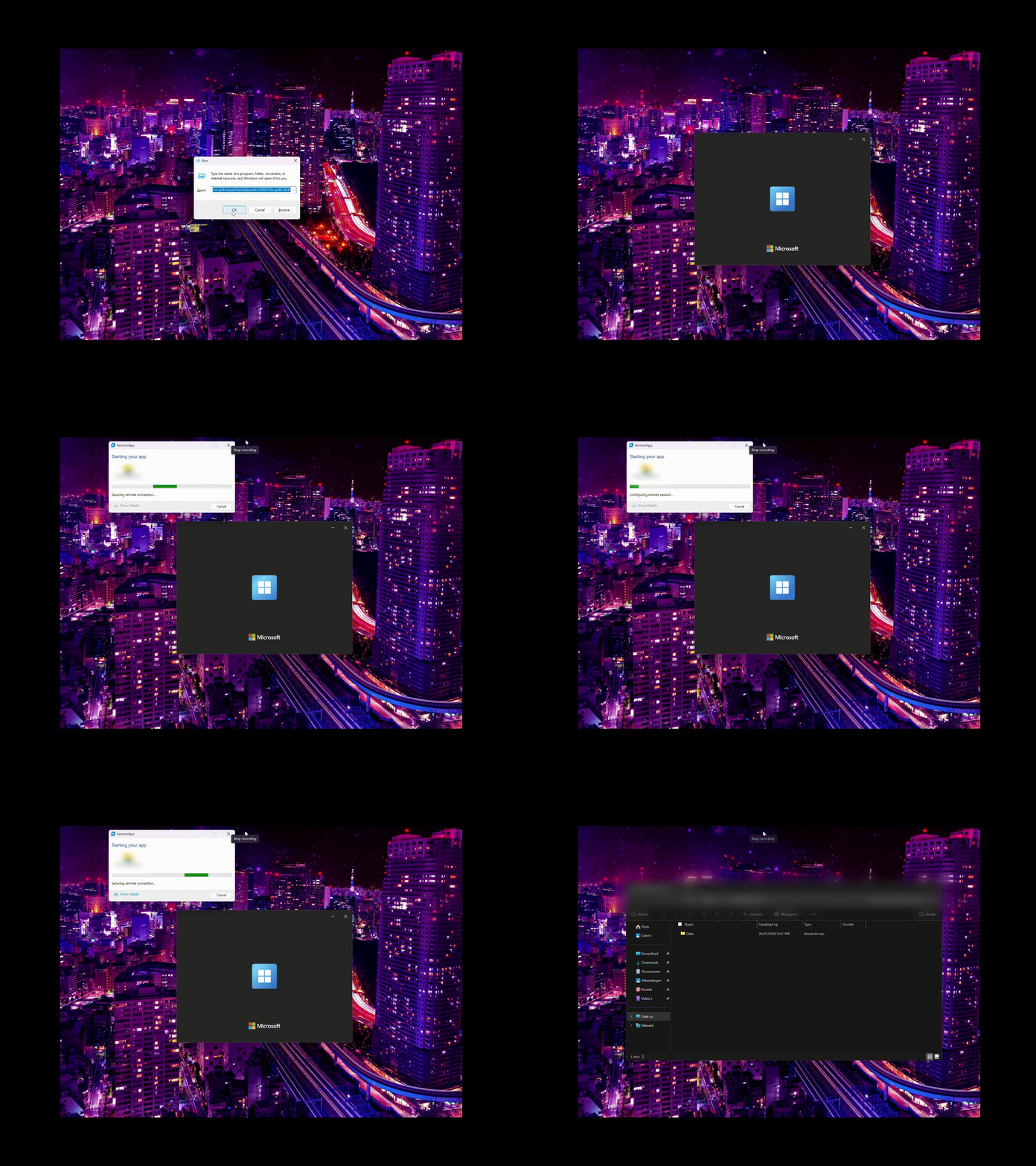
Demo:
I hope this helps you streamline your Azure Virtual Desktop setup and create a smoother experience for your users.
Source:
Written by Joey Verlinden
Back to all articles