Fasten Hybrid Join AVD + Intune Deployment

Recently we faced a situation that we needed to revert from Entra ID Join back to a Hybrid Azure AD Join, for an AVD environment. While Entra ID Join combined with Intune enrollment is typically smooth, with session hosts ready in about 15 minutes, Hybrid Join is a different story..
In our experience, some machines took 1 to 3 hours to become Hybrid Joined and finally Intune managed, and occasionally, enrollment never happened at all. It’s important to note that Intune enrollment stops after 24 hours. If enrollment doesn’t succeed within that window, it won’t retry, and the machine will remain unmanaged.
This is a serious risk, especially given our tight timelines to redeploy all session hosts (monthly) over night. We couldn’t risk waking up to an environment that wasn’t fully operational. So we needed to optimize and accelerate the entire deployment process, which looks like this:
- Deploy AVD Session Host
- Sync with Entra ID via Azure AD Connect
- Machine becomes Hybrid Joined
- Machine becomes Intune Enrolled
After extensive troubleshooting, we developed a custom script to streamline the entire process. While the script is complex under the hood, it automates key actions and significantly improves reliability.
We reduced the full deployment and enrollment process from 1–3+ hours down to just 37 minutes for a batch of 50 machines! This timing depends on two main factors:
- The speed of your DevOps pipeline/deployment
- The Entra ID Connect sync cycle (typically every 30 minutes)
Event logs
While troubleshooting, we observed repeated event log entries under ‘Microsoft-Windows-DeviceManagement-Enterprise-Diagnostics-Provider/Enrollment‘. Despite having the correct GPO in place for MDM enrollment using DeviceCredential, the events were logged every 5 minutes (via the scheduled task) or after manually running the device enrollment command.
- Auto MDM Enroll DmGetAadDeviceTokenWithDiscovery with Application ID (NULL): Status (Access is denied.)
- Auto MDM Enroll DMGetAadDeviceToken Failure (Access is denied.)
- Auto MDM Enroll Get AAD Token: Device Credential (0x0), Resource Url (NULL), Resource Url 2 (NULL), Status (Mobile Device Management (MDM) is not configured.)
Through troubleshooting, we determined that a simple reboot resolves the issue, but only if it occurs after the device has successfully completed its Hybrid Join. Rebooting the device prior to the Hybrid Join has no impact on the enrollment behavior.
Script flow
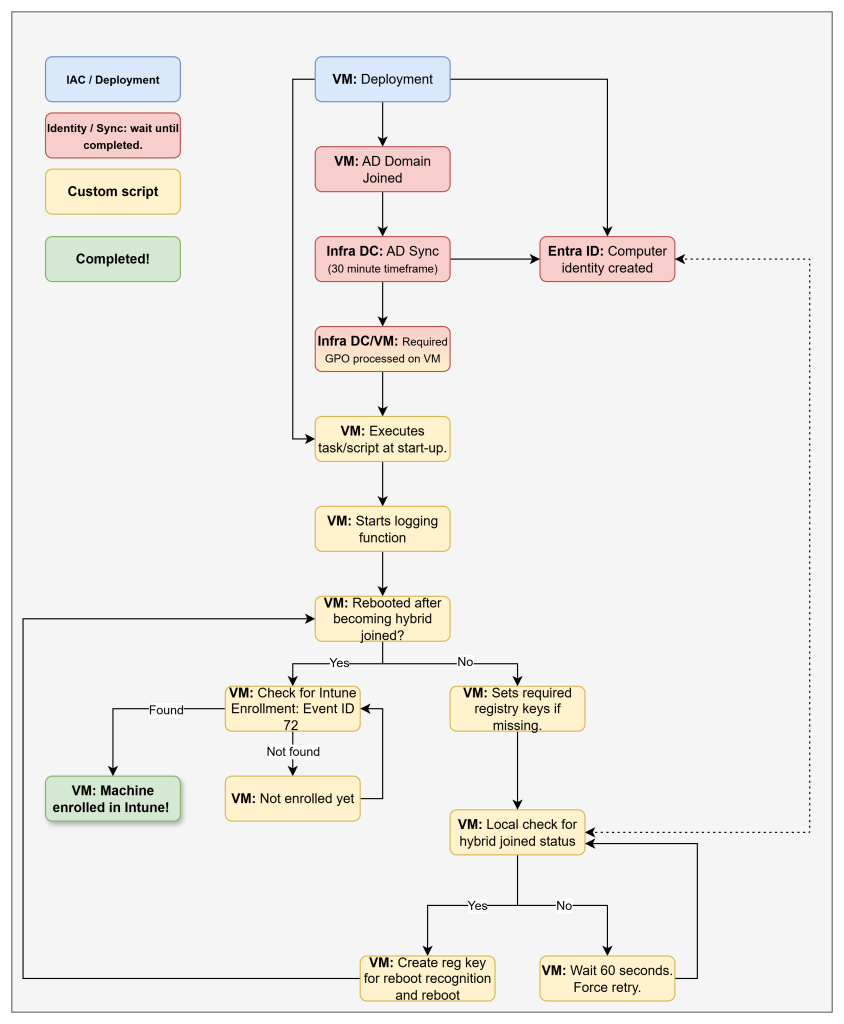
Below is a detailed breakdown of the script’s execution process.
⚠️ Important:
This registry key acts as a flag for the script to determine if a reboot is required. It’s generated immediately before the script initiates the reboot.
HKLM:\Software\AVD Management\HybridRebootOccured\DONOTREMOVE
Do not delete this key. If it’s removed, the script will trigger an extra reboot when the task runs again, potentially leading to unpredictable behavior.
Logging
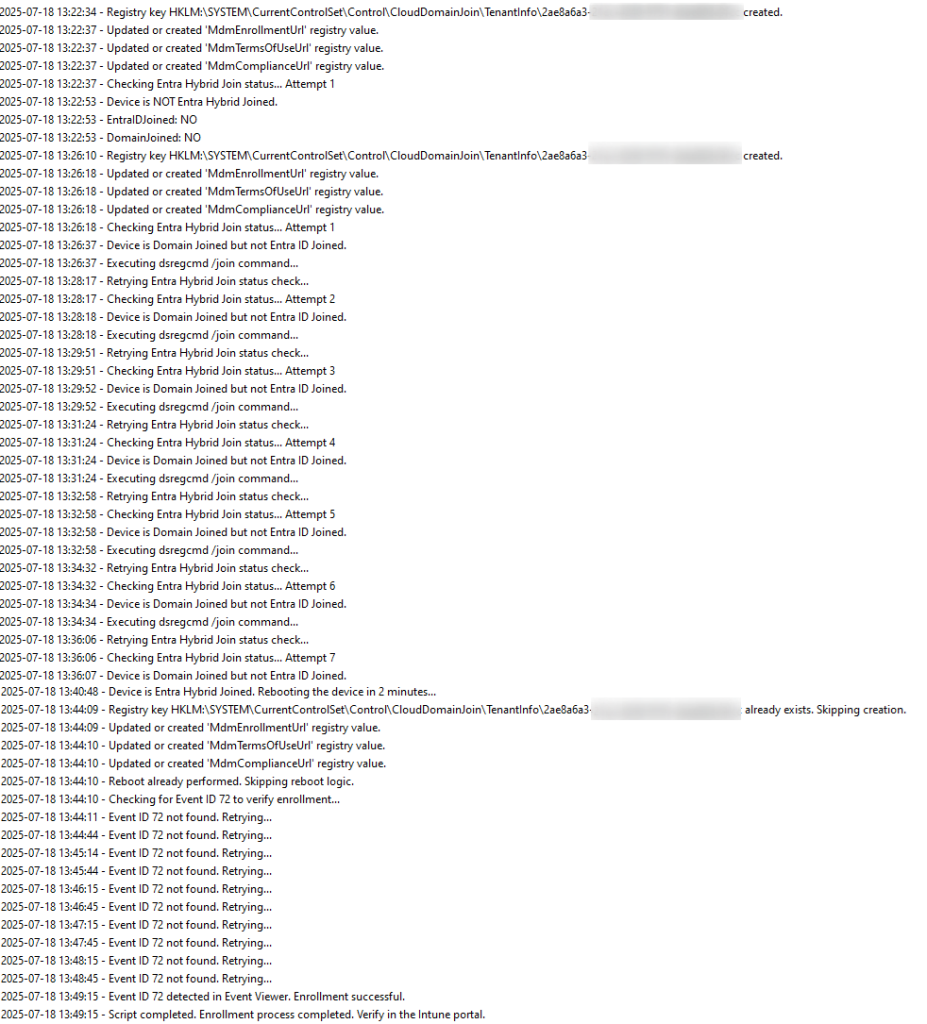
Script activity is logged in real-time to C:\Windows\Temp\Force_MDM_Enrollment.log, capturing each step of the enrollment workflow.
Implementation steps
Required GPO
You can use a Group Policy to trigger autoenrollment to Mobile Device Management (MDM) for Active Directory (AD) domain-joined devices.
The group policy created on your local AD triggers enrollment into Intune without any user interaction. This cause-and-effect mechanism means you can automatically mass-enroll a large number of domain-joined corporate devices into Microsoft Intune.
- Run gpedit.msc. Choose Start, then in the text box type gpedit.
- In Local Computer Policy, select Administrative Templates > Windows Components > MDM.
- Double-click Enable automatic MDM enrollment using default Microsoft Entra credentials. Select Enable, select Device Credential from the dropdown menu.
Source: Enroll a Windows device automatically using Group Policy | Microsoft Learn
Automated images
If you’re using Azure Image Builder, add the script to your custom image during the build process, using the approach that suits your automation workflow. The script can be found here in my Github repo. Make sure you modify the desired tenant id in the script!
Just before sysprep is being executed, create a scheduled task that launches the script on startup. An example script can be found here in my Github repo. Make sure to modify the path where the script is deployed in your sessionhost / image!
Manual image creation
If you’re creating images manually you can simply store the script somewhere in the OS Drive and create the desired scheduled task within your image. The script can be found here in my Github repo. Make sure you modify the desired tenant id in the script!
Just before sysprep is being executed, create a scheduled task that launches the script on startup. An example script can be found here in my Github repo. Make sure to modify the path where the script is deployed in your sessionhost / image!
Conclusion
Using a Hybrid Join setup for AVD can introduce unexpected delays and challenges, especially when it comes to timely Intune enrollment. While Entra ID Join provides a more streamlined experience, Hybrid Join environments often require additional tuning and automation to meet deployment timelines.
By identifying bottlenecks, analyzing enrollment behavior, and developing a custom script, we were able to significantly reduce the end-to-end deployment time from several hours down to just over 30 minutes.
We hope this approach helps others facing similar issues in Hybrid AVD and Intune environments. If you’re deploying at scale under tight deadlines.
Update 1 – 24-07-2025:
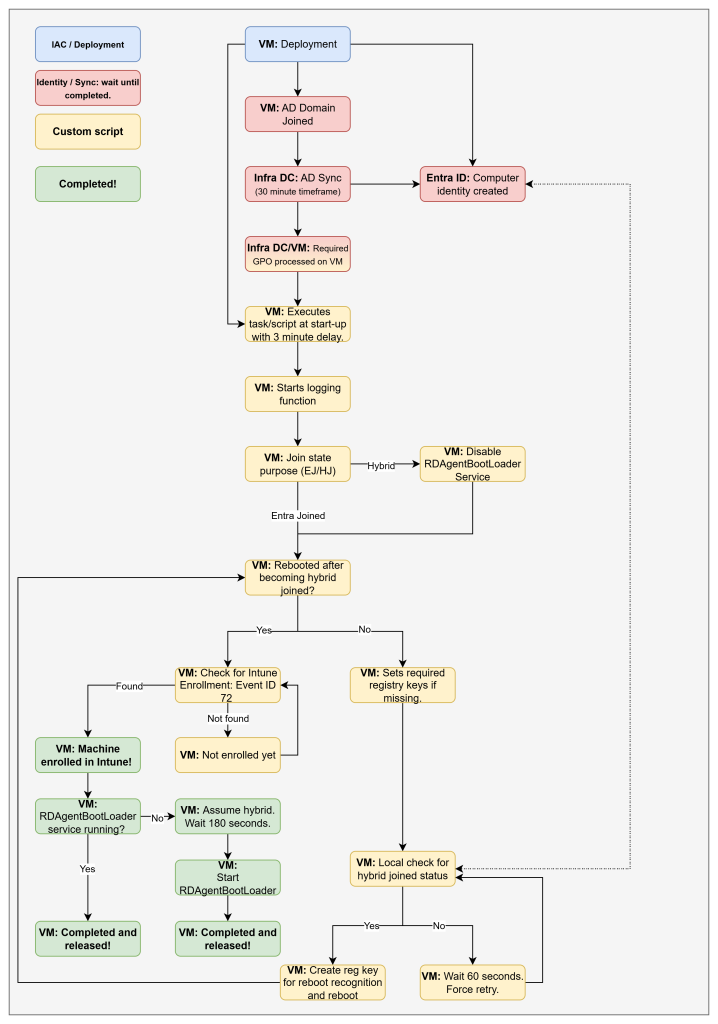
To stop users from logging into machines before they’re fully enrolled, you can disable the Remote Desktop Agent Loader (RDAgentBootLoader) service. This will cause the session hosts to appear as unavailable in the Azure Portal, effectively blocking user logins. This additional script automates this step it disables the service initially and then automatically starts it again once the machines are fully enrolled in Intune, making them available to users.
Important: Do not run this script on Entra ID Joined machines. Since these devices won’t meet the conditions the script checks for, it will permanently disable the RDAgentBootLoader service, preventing the machines from ever becoming available.
Update 2 – 24-07-2025:
To simplify deployment, I’ve updated the script to support both Entra Joined and Hybrid Joined machines simultaneously. This change was necessary because we use a single image in Azure Image Builder that installs the script and scheduled task by default. Our Azure DevOps pipeline determines whether a machine will be Hybrid or Entra Joined.
In previous versions, the script could cause unexpected issues when disabling the RDAgentBootLoader service particularly in Entra Joined scenarios. This could prevent the service from starting, potentially resulting in unavailable resources within the host pool.
With the new update, the script performs minimal actions on Entra Joined devices but can still be deployed and executed safely, without any unintended side effects.
The script now includes a check for the registry key HKLM:\SOFTWARE\Microsoft\Windows\CurrentVersion\CDJ, which is only present on Entra Joined devices. Since this key is absent on (Hybrid) Domain Joined machines, it serves as a reliable way to differentiate between the two join types.
Additionally, the scheduled task that triggers the script has been updated to include a 3-minute startup delay, ensuring the system is fully initialized before execution begins and has time to determine if the machine is meant to become Entra or Hybrid Joined.
You can find the updated scripts here and the delayed scheduled task here. The entire process for the updated script looks somewhat the same except for some checks at a few steps.
Written by Joey Verlinden
Back to all articles