AVD Sessionhost Uptime Threshold (Rolling Drain Mode)

Managing session host uptime in a 24×7 Azure Virtual Desktop (AVD) environment can be tricky. With users constantly connecting and load balancing spreading sessions across hosts, some virtual machines can quietly run far beyond their intended reboot cycle—potentially impacting performance, security, and stability.
To address this, I’ve built a PowerShell script to automate the maintenance lifecycle of session hosts within a specified AVD host pool. By tracking VM uptime and enforcing a configurable reboot threshold, it ensures that no host remains online longer than it should. This lightweight automation helps keep your AVD infrastructure healthy, compliant, and performing at its best without manual oversight.
In this post, we’ll explore how the script works, what features it offers, and how it can seamlessly fit into your existing AVD operations.
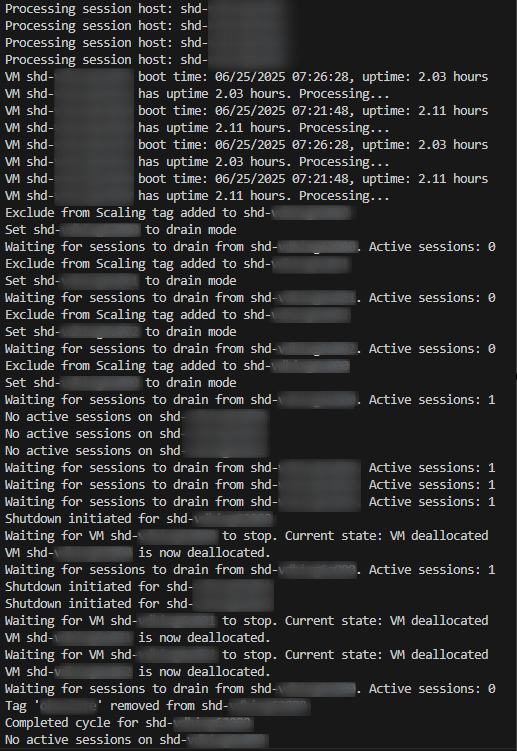
Script steps
This script leverages parallel processing to handle all session hosts concurrently, dramatically improving efficiency and reducing the total time needed for uptime checks and reboots. Whether you’re managing 5 or 50 hosts, tasks are completed faster so your environment stays compliant without delay. The total number of VMs handled simultaneously is configurable via a parameter. Make sure you keep some resources available while running the script.
- Uptime Check: Only targets VMs that have been running longer than a configurable threshold (default: 23 hours).
- Tagging: Temporarily tags VMs as
ExcludeFromScaling=trueto exclude them from scaling operations. - Drain Mode: Puts session hosts into drain mode to prevent new user sessions.
- Session Drain Wait: Waits until all active user sessions have logged off before proceeding.
- Graceful Shutdown: Shuts down (deallocates) the VM after sessions are drained.
- Tag Cleanup: Removes the
ExcludeFromScalingtag after the cycle is complete.
After the session hosts are shut down, the scaling plan associated with your host pool takes over, determining whether and when the machines should be restarted based on your configured rules and schedule.
Note 1: The script intentionally avoids using Connect-AzAccount, as it’s designed for use in CI/CD pipelines where authentication should be managed externally, typically through service connections or managed identities.
Note 2: The script continues running until all matching session hosts no longer have any active or disconnected user sessions. When using Microsoft-hosted agents—which have a 60-minute time limit—this may lead to a timeout. To avoid this, it is recommended to use self-hosted agents instead.
Script modifications
- Configure Variables:
Edit the script to set your Azure resource group, host pool name, location and throttle limit. - Exclude tag: Edit the ExcludeFromScaling tag with your required exclusion tag. This one can be found in your scaling plan.
- Uptime threshold: Edit the value in the uptime check section to adjust how long a VM must be running before it is cycled. Default setting is 23 hours.
Requirements
- Azure PowerShell modules:
Az.DesktopVirtualizationAz.Compute
- PowerShell 7 (for parallel processing)
- Sufficient permissions to manage VMs and session hosts in the specified resource group and host pool. E.g.
Automation
Running the script manually in a PowerShell session with the necessary Azure permissions is perfectly fine for initial testing or one-off tasks. However, for consistent and hands-free operation, it’s best to automate it through a CI/CD pipeline—ensuring regular execution without relying on manual intervention.
Download
The script can be found in my Github repository.
Written by Joey Verlinden
Back to all articles