Envoy – Lightweight User Environment Manager

🛠️ What Is Envoy?
Envoy is a lightweight PowerShell-based User Environment Manager (UEM) created for IT admins. Designed primarily for Windows machines managed via Microsoft Intune, Envoy automates configurations during user logon. Capabilities that Intune doesn’t natively offer or needs complex configurations.
If you’re managing Windows endpoints with Intune and need role- or department-based environment automation during logon, Envoy is worth a close look.
🚀 Core Features
Envoy leverages Microsoft Graph with an App Registration to retrieve a user’s Entra ID group memberships. It then performs environment configuration based on those group memberships, including:
- Drive mappings: Maps or removes network drives conditionally, with priority handling to resolve letter conflicts.
- Printer setup: Adds/removes printers. Recent versions (v1.1.116) introduced setting a default printer via configuration.
- Registry operations: Reads registry-related configurations from the XML file.
- File actions: Automated copying, moving, deleting, or renaming files.
- Executable launches: Runs programs determined by group membership.
- Desktop shortcuts: Creates desktop shortcuts.
- Start-Menu shortcuts: Creates start-menu shortcuts.
- Logging: Maintains user-specific logs at
C:\ProgramData\Envoy\Logging\<username>\User.log
📺 Envoy Demo Video – See It In Action!
Curious how Envoy simplifies user environment management in real-world scenarios? Check out this quick demo showcasing dynamic drive mappings, printer setups, and group-based configurations—all managed seamlessly during user logon.
Get a firsthand look at how Envoy enhances the Intune experience with automation and precision. Perfect for IT admins looking to bridge the gap Intune leaves behind!
⚙️ How Envoy Works
- Configuration: Settings are stored in
C:\ProgramData\Envoy\Config.xml. - Authentication: Envoy uses Microsoft.Graph PowerShell modules to authenticate.
- Group-Based Execution: Checks each user’s group memberships and applies the relevant configurations.
- Logging & Feedback: Records each action’s success or failure.
🛠️ Installation & Dependencies
- Requires PowerShell and the Microsoft.Graph PowerShell module. These are being included in the MSI setup.
- Configuration is XML-based, stored under
%ProgramData%\Envoy. - Uses an built-in Enterprise Application with permissions to read user group memberships via Microsoft Graph.
🧩 Why Envoy?
Intune excels at provisioning but lacks granular per-user context actions during login. Envoy fills this gap by enabling:
- Dynamic-resource mapping: Assign different drives, printers, or tools based on business units or roles.
- Conditional automation: Automate file operations and program launches tailored to user groups.
- Auditability: Logs every action clearly for diagnostics and compliance.
- No costs: Envoy is totally free! It accepts donations for those who benefit from Envoy!
🚀 Getting Started with Envoy
Envoy is easy to deploy across your Intune-managed Windows environment. Follow these steps to download and install it:
📦 Step 1: Download the MSI
Grab the latest Envoy installer from the official GitHub Releases page:
Choose the latest .msi file—this is the Windows installer package you’ll use to deploy Envoy to your endpoints.
🛠️ Step 2: Follow the Installation Instructions
Detailed setup guidance is available in the project’s README:
📖 View Installation Instructions
This section walks you through:
- Installing the MSI silently via Intune
- Placing the
Config.xmlfile atC:\ProgramData\Envoy\Config.xml - Creating and assigning an Entra ID app registration for Microsoft Graph
- Triggering Envoy via a scheduled task or logon script
Once installed, Envoy will run at user logon, automatically configuring drives, printers, registry keys, and more—based on the user’s Entra ID group membership.
⚙️ Step 3: Create your Config.JSON file
🛠 Structure Overview
The Config.json file is divided into top-level keys representing functions such as:
DriveMappingsPrintersExecutablesFilesRegistryStartMenu IconsDesktop IconsGroupRules
Each section defines actions scoped by group names or IDs. Here’s an example and how it’s structured:
{
“Configuration”: {
“Drives”: [
{
“DriveLetter”: “X”,
“UNCPath”: “\\\\storageaccount.file.core.windows.net\\Sales”,
“Group”: “Storage - EID - Sales Department”,
“Description”: “Sales Drive”,
“Priority”: 1,
“Action”: “add”
},
{
“DriveLetter”: “Y”,
“UNCPath”: “\\\\storageaccount.file.core.windows.net\\Operations”,
“Group”: “Storage - EID - Operations Department”,
“Description”: “Operations Drive”,
“Priority”: 1,
“Action”: “add”
}
],
“Registries”: [
{
“Key”: “HKCU:\\Software\\TestKey”,
“ValueName”: “TestValue1”,
“ValueType”: “DWORD”,
“ValueData”: 1,
“Group”: “Registry - EID - TestKey”,
“Action”: “add”
},
{
“Key”: “HKCU:\\Software\\TestKey”,
“ValueName”: “TestValue2”,
“ValueType”: “STRING”,
“ValueData”: “2”,
“Group”: "",
“Action”: “add”
}
],
“Executables”: [
{
“FilePath”: “C:\\Windows\\System32\\calc.exe”,
“Arguments”: "",
“Group”: “Executable - EID - Calculator”
}
],
“FileActions”: [
{
“FileActionType”: “copy”,
“SourcePath”: “C:\\Temp\\Source\\File.txt”,
“DestinationPath”: “C:\\Temp\\Destination\\File.txt”,
“NewName”: “NewFileName.txt”,
“Group”: “FileAction - EID - Test”
}
],
“Printers”: [
{
“PrinterPath”: “\\\\PrintServer\\PRTTST01”,
“Group”: “Printers - EID - PRTTST01”,
“Action”: “add”,
“DefaultPrinter”: “true”
},
{
“PrinterPath”: “\\\\PrintServer\\PRTTST02”,
“Group”: “Printers - EID - PRTTST02”,
“Action”: “add”
}
]
}
}
Update 02-09-2025
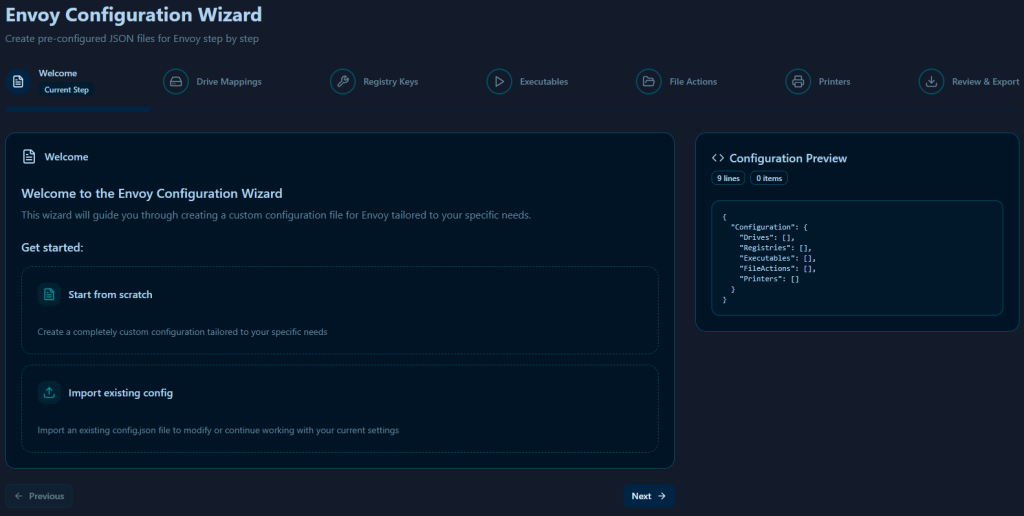
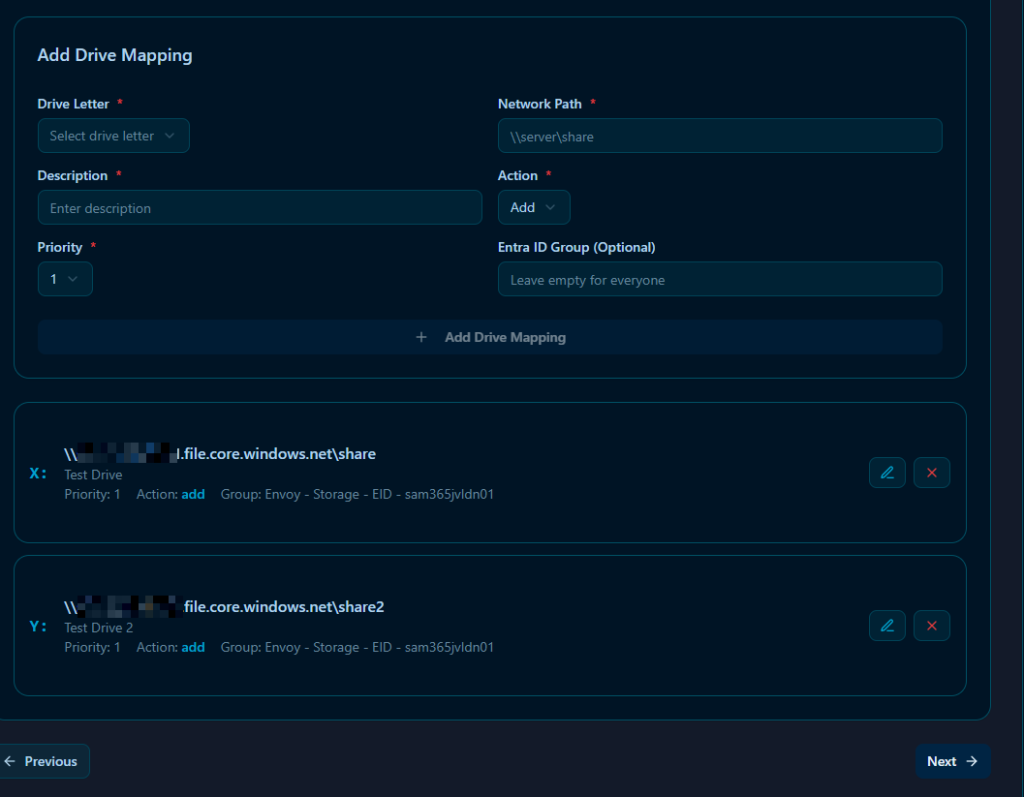
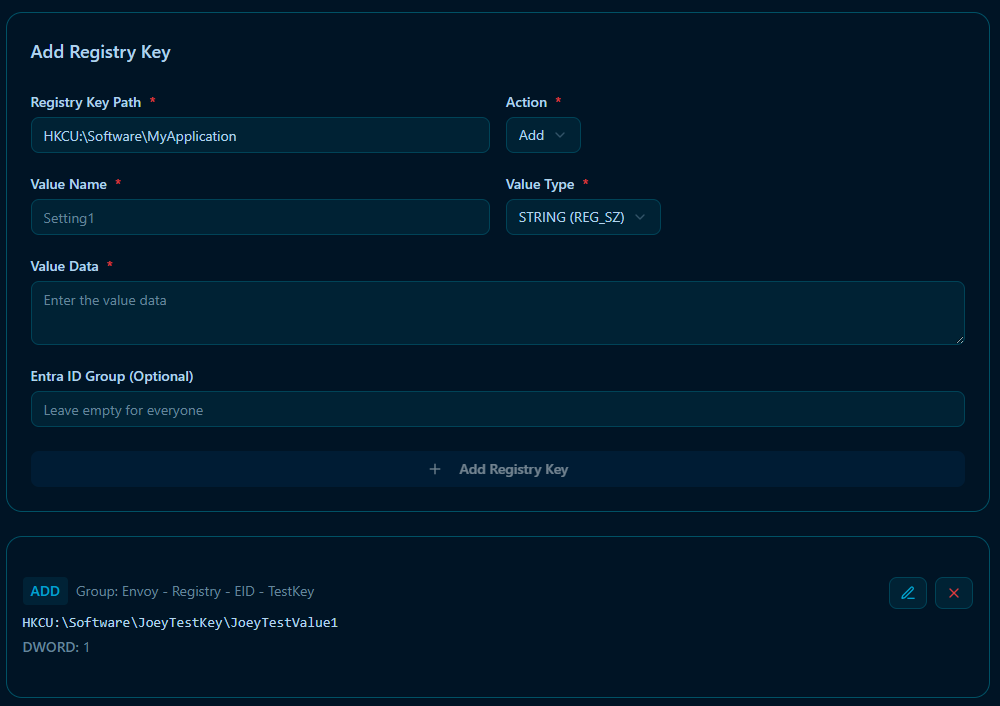
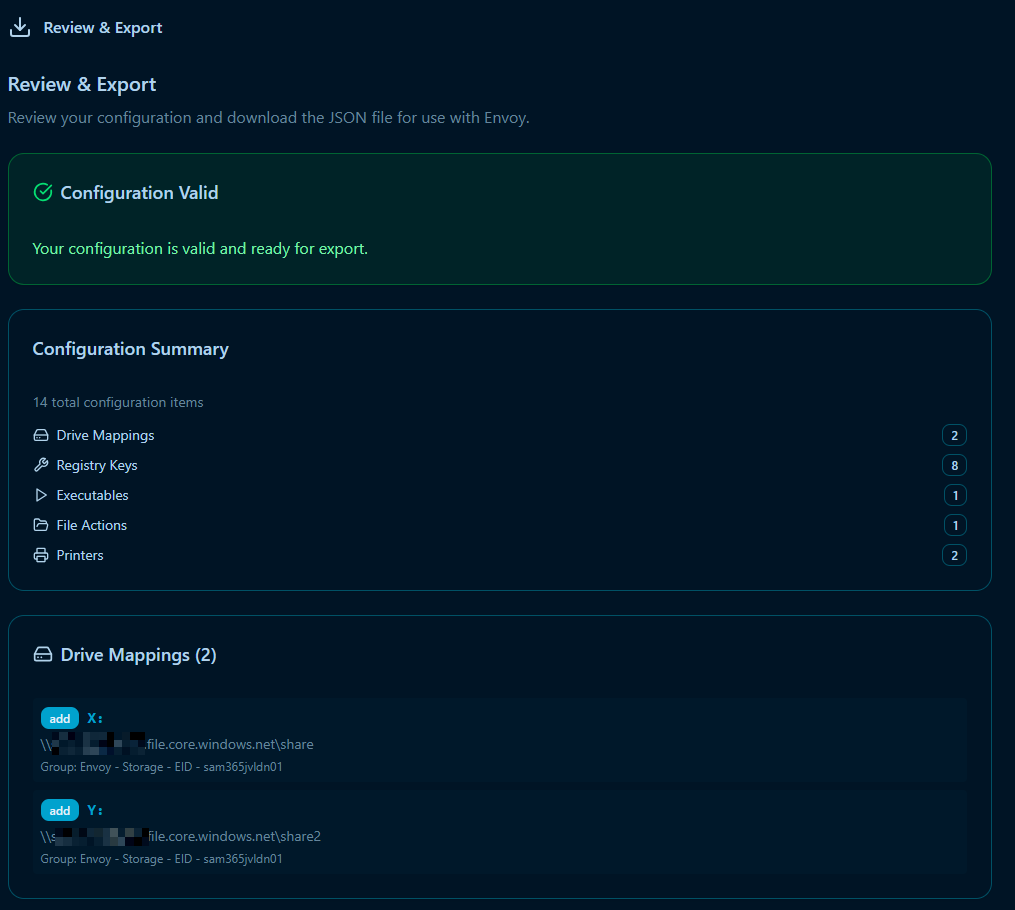
Envoy now includes a Config Builder App. a web-based tool that makes it easy to create new configurations or adjust existing ones. The guided, step-by-step process helps you generate a valid JSON file effortlessly. The configuration builder can be found via Envoy Configuration Wizard.
🌐 Centralized Distribution
To streamline configuration updates and avoid managing Config.xml individually on every device, Envoy supports multiple centralized distribution options. These allow Envoy to fetch and use a centrally stored configuration file, ensuring consistent settings across all devices.
📦 1. GitHub-Hosted Config Delivery
You can host your Config.xml directly in a public (or private with access tokens) GitHub repository.
✅ Great for: Small teams, public projects, or environments without internal infrastructure.
☁️ 2. Azure Blob Storage
Store the configuration in an Azure Blob Container
✅ Great for: Cloud-first or fully cloud-native environments
🔐 Supports secure access via SAS tokens or managed identity (future enhancement)
🔷 3. Azure Files
Host the Config.xml in an Azure Files share and reference the UNC path in your local config or registry.
✅ Great for: Hybrid setups or cloud-native setups with Azure AD Kerberos or identity-based access.
🖥️ 4. On-Prem File Share
The most traditional approach. Place the Config.xml on a secured network share accessible to user devices.
✅ Great for: On-prem or hybrid environments
🛠 Requires: Devices to have network line-of-sight and read permissions
✅ Benefits:
- Simplified management – One config file to maintain for all users.
- Faster updates – Changes take effect automatically without redeploying via Intune or GPO.
- Consistent configuration – Ensures all devices use the latest settings without drift.
💖 Support the Project
Envoy is a free and open-source tool built to fill a real-world gap in Windows user environment management—especially for Intune-managed devices. If Envoy has saved you time, streamlined your deployments, or made your life as an IT admin a little easier, consider showing your support!
☕ Buy Me a Coffee / Github Sponsors – Your donations help keep the project alive, maintained, and evolving.
Every contribution, big or small, helps cover development time, testing, and future improvements. Thank you for supporting open-source work!
🔗 Resources
Website: https://www.envoycontrol.com
Github: https://github.com/j0eyv/Envoy
Written by Joey Verlinden
Back to all articles