Automate User Logon Tasks for Intune managed devices

Managing device configurations and automating tasks at user logon is a common requirement for IT administrators. To streamline this process, I’ve created a PowerShell script (shared at the end of this post) that sets up a scheduled task to run a custom helper script at every user logon. This approach is ideal for deploying configuration changes, or launching any script you need to execute as users sign in.
Although “Envoy – Lightweight User Environment Manager” offers greater flexibility and reliability, this script accomplishes the basics.
If you want to manage or deploy Drive Mappings, Printer mappings, Registry keys, or run certain executables at logon (depending on Entra ID group memberships), I suggest checking out Envoy.
How it works
- Creates a Custom Script Directory:
The script ensures a dedicated folder (C:\ProgramData\CustomDeviceManagement\) exists to store your helper script. - Generates a Helper Script:
It creates a PowerShell script in (C:\ProgramData\CustomDeviceManagement\) where you can add your custom logon actions. - Registers a Scheduled Task for All Users:
Using an XML definition, the script registers a scheduled task that triggers at every user logon, running your helper script with the necessary permissions. - Sets a Registry Key for Detection:
For management and compliance tools (like Intune), the script writes a registry key indicating successful deployment. This makes it easy to detect and report on deployment status.
How to use
- Customize the Helper Script:
Edit the section marked**START CUSTOM EXECUTION SCRIPT**to add the actions you want to perform at logon. - Adjust Task Metadata:
Update the**$taskName**,**$taskDescription**, and**$Author**variables at the top of the script to fit your environment. - Package as Intunewin file
Convert the PowerShell script into a Win32 Intunewin package for deployment. - Distribute via Intune
Create a new Win32 Application within Intune
Example Use Cases
- Deploying custom configuration files at logon
- Launching user-specific scripts at logon (Including drive mappings, registry mappings, printer mappings, etc)
Example(s)
Note: This part of the script is stored between START CUSTOM EXECUTION SCRIPT and END CUSTOM EXECUTION SCRIPT
Add Printer queue for every user
$printerPath = '\\contoso.local\FollowMePrinter'
$printerName = 'FollowMePrinter'

try {
    # prefer Get-Printer if available
    if (Get-Command -Name Get-Printer -ErrorAction SilentlyContinue) {
        $exists = Get-Printer -ErrorAction SilentlyContinue | Where-Object {
            ($_.Name -eq $printerName) -or ($_.Name -eq $printerPath) -or ($_.ShareName -eq $printerName)
        }
    } else {
        $exists = Get-WmiObject -Class Win32_Printer -ErrorAction SilentlyContinue | Where-Object {
            ($_.Name -eq $printerName) -or ($_.Name -eq $printerPath) -or ($_.ShareName -eq $printerName)
        }
    }

    if (-not $exists) {
        # try Add-Printer (preferred)
        try {
            Add-Printer -ConnectionName $printerPath -ErrorAction Stop
        } catch {
            # fallback to PrintUI if Add-Printer fails
            Start-Process -FilePath 'rundll32.exe' -ArgumentList "printui.dll,PrintUIEntry /in /n `"$printerPath`"" -Wait -NoNewWindow
        }
    }

} catch {
    # minimal logging for troubleshooting; append to temp file
    $log = "[$([datetime]::UtcNow)] CentralePrinter install error: $($_.Exception.Message)"
    $logPath = 'C:\Windows\Temp\FollowMePrinterCheck.log'
    $log | Out-File -FilePath $logPath -Encoding UTF8 -Append
}
Add registry keys
Keep in mind that actions run in the user context. Therefore, administrative privileges are required to modify HKLM (HKEY_LOCAL_MACHINE) registry keys.
$Path = "HKCU:\Software\MyCompany\MyApp"
$Name = "Version"
$Value = "1.0"
$PropertyType = "String"

New-Item -Path $Path -Force
New-ItemProperty -Path $Path -Name $Name -Value $Value -PropertyType $PropertyType -Force
Remove registry keys
Keep in mind that actions run in the user context. Therefore, administrative privileges are required to modify HKLM (HKEY_LOCAL_MACHINE) registry keys.
$path = "HKCU:\Software\MyCompany\MyApp"

if (Test-Path $path) {
    Remove-Item -Path $path -Recurse -Force
    Write-Host "Registry key removed: $path"
} else {
    Write-Host "Registry key not found: $path"
}
Modify registry keys (if exists)
Keep in mind that actions run in the user context. Therefore, administrative privileges are required to modify HKLM (HKEY_LOCAL_MACHINE) registry keys.
$path = "HKCU:\Software\MyCompany\MyApp"
$name = "Version"
$value = "2.0"

if (Test-Path $path) {
    if (Get-ItemProperty -Path $path -Name $name -ErrorAction SilentlyContinue) {
        Set-ItemProperty -Path $path -Name $name -Value $value
    } else {
        New-ItemProperty -Path $path -Name $name -Value $value -PropertyType String
    }
} else {
    New-Item -Path $path -Force | Out-Null
    New-ItemProperty -Path $path -Name $name -Value $value -PropertyType String
}
Prepare the scripts
The installation and uninstallation processes will be managed through Intune. Therefore, we prepare the install and uninstall files and package them into a Win32 Intunewin file.
Installation
Download the Install script using the link provided below. Adjust the parameters $taskName, $taskDescription, and $Author as needed. Insert your PowerShell script or code between the START CUSTOM EXECUTION SCRIPT and END CUSTOM EXECUTION SCRIPT markers.
Uninstallation
We also require a way to remove the script and the scheduled task. Therefore, I will give you a template script for uninstallation. Only slight changes are necessary for the uninstallation process. The only parameter we need to change is $taskName, which is identical to the one used during installation.
Installation through Intune
Upload the Package to Intune
- Go to https://intune.microsoft.com
- Navigate to Apps > Windows > Add
- Select App type: Windows app (Win32)
- Upload the
.intunewinfile
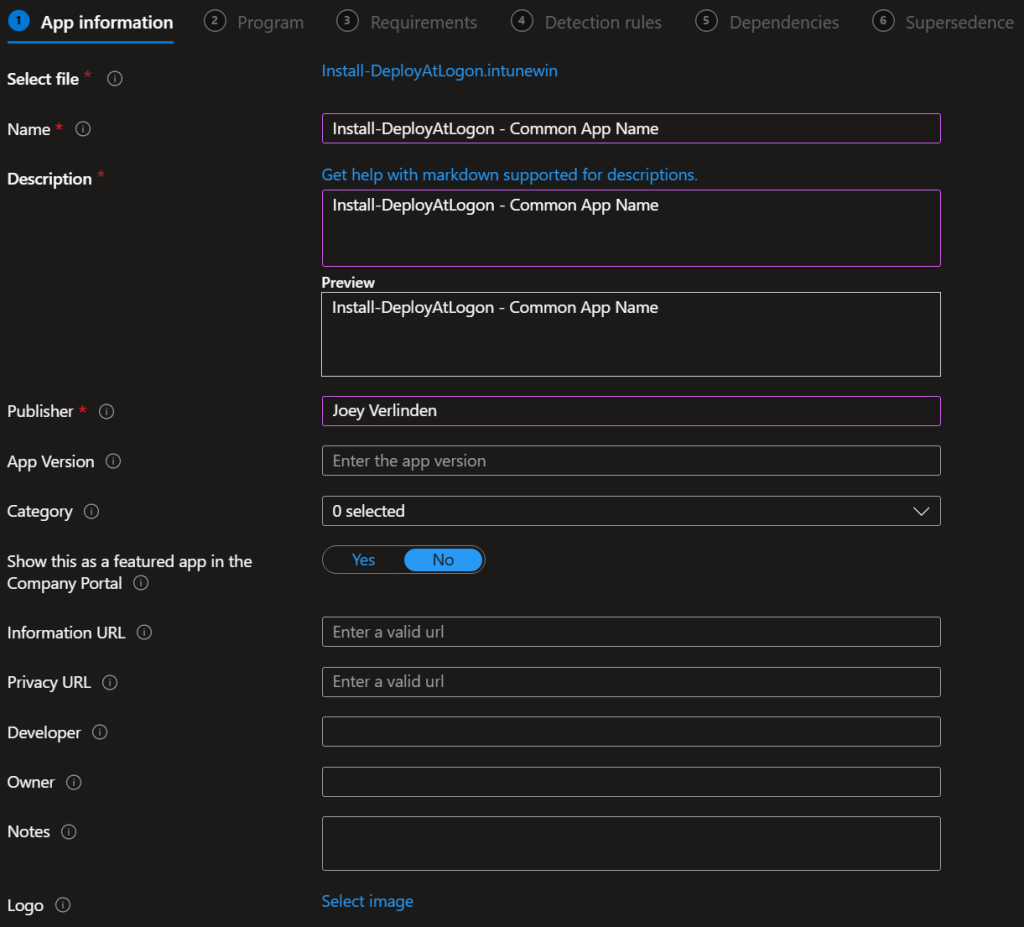
App Information
- Name: Add a common App name
- Description: Add a common description
- Publisher: Add a publisher name
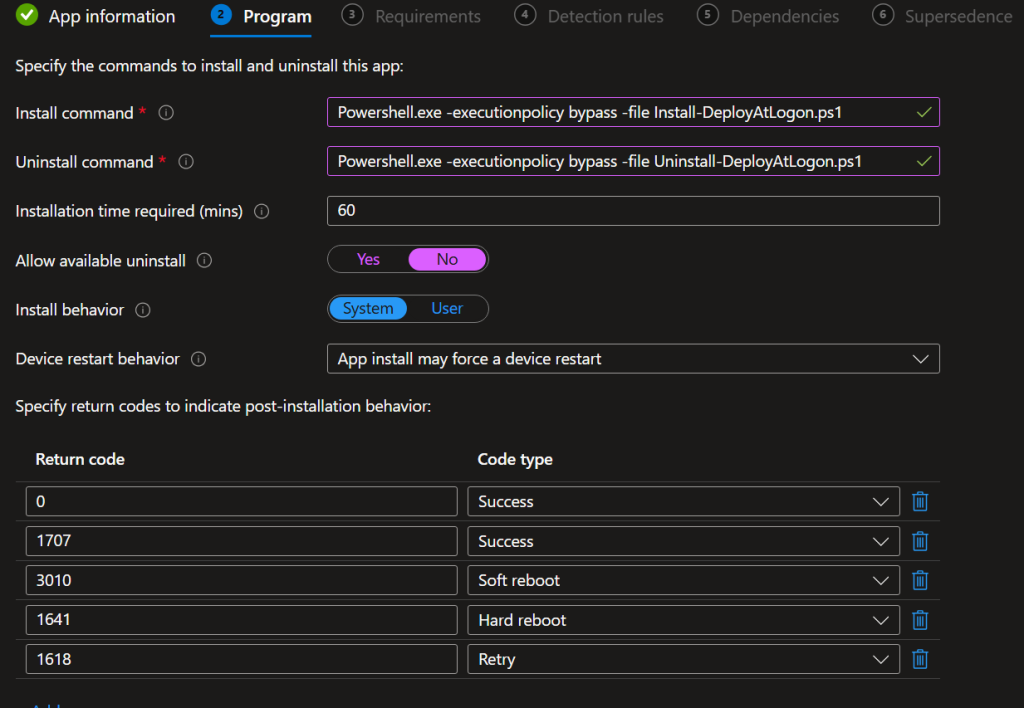
Program
- Install command: Powershell.exe -executionpolicy bypass -file Install-DeployAtLogon.ps1
- Uninstall command: Powershell.exe -executionpolicy bypass -file Install-DeployAtLogon.ps1
- Install behavior: Select System. Even when doing user context actions.
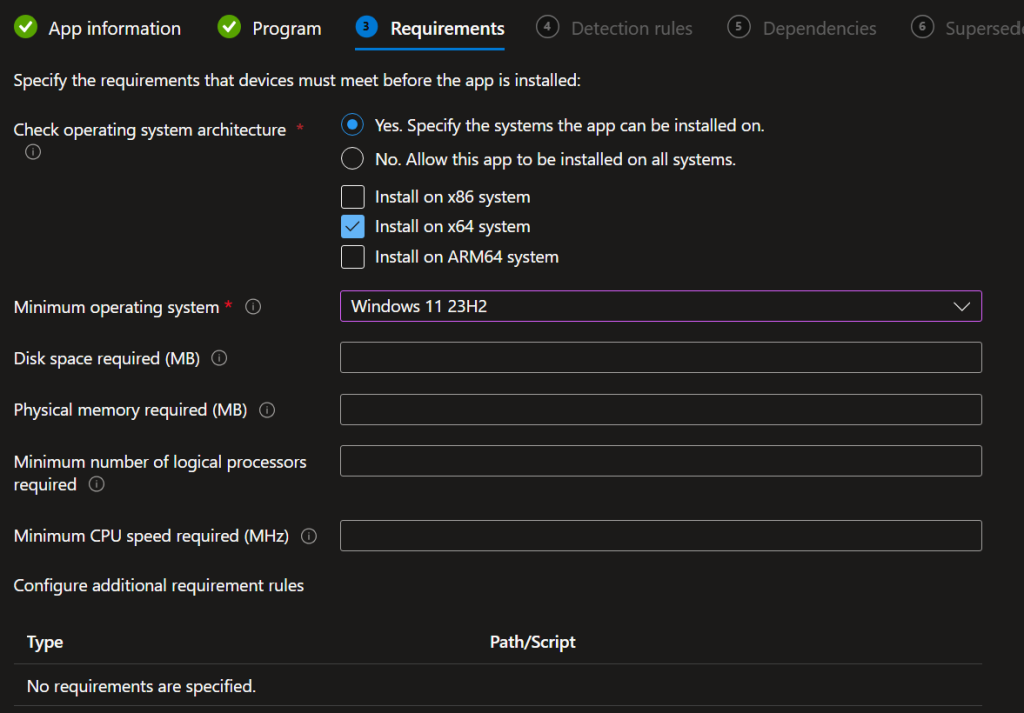
Requirement
Include requirement specifications based on your needs. In my case, I require x64 systems operating on at least Windows 11 23H2. This may vary depending on the actions you have scripted.
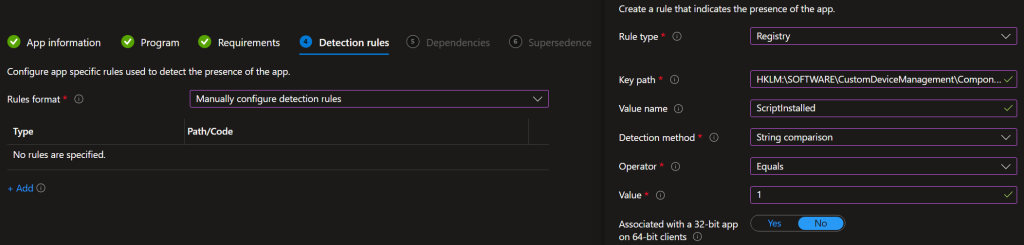
Detection rules
The Installation script offers a standardized way to detect. It generates a registry key when both the script and scheduled task are set up. While this method is recommended, you may choose to use your own detection approach.
- Rule type: Registry
- Key path: HKLM:\SOFTWARE\CustomDeviceManagement\$taskName
- Value name: ScriptInstalled
- Detection method: String comparisson
- Operator: Equals
- Value: 1
Note: Change $taskName in the Key path to match the name of your Scheduled Task. This corresponds to the value set in the $taskName parameter.
Dependancies & Supersedence
These are optional.
Assignment
Apply the policy to the group of users or devices you choose.
Screenshots
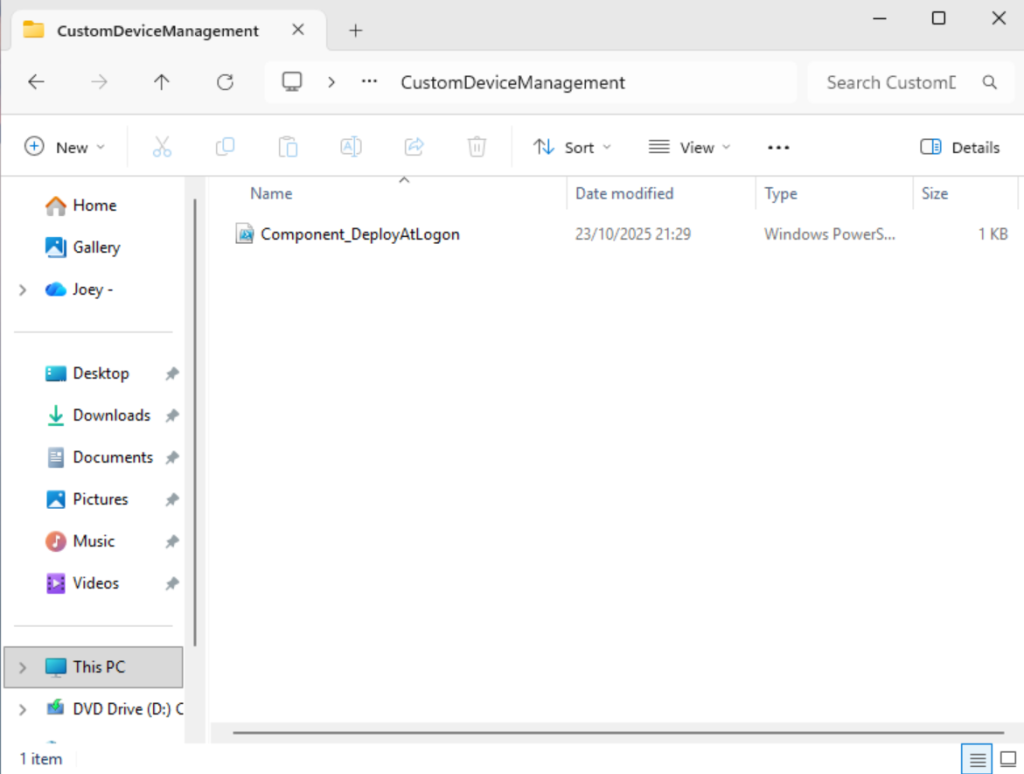
A PowerShell script has been created in the directory C:\ProgramData\CustomDeviceManagement. The code within this script is located between the lines labeled START CUSTOM EXECUTION SCRIPT and END CUSTOM EXECUTION SCRIPT.
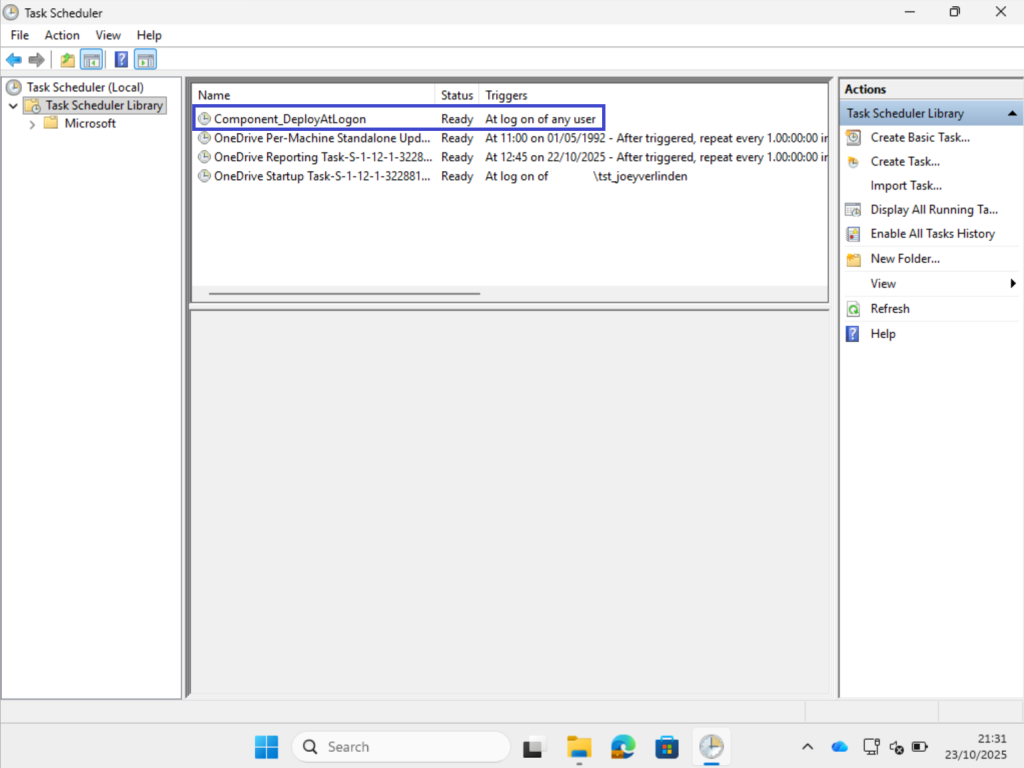
A scheduled task is set up to execute for each user upon logging in.
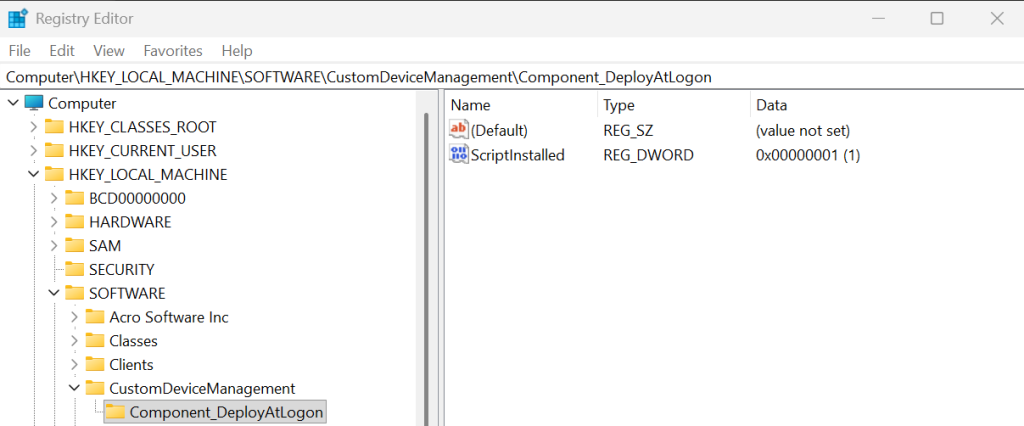
A registry key is generated that can serve as a detection rule for your installation.
Written by Joey Verlinden
Back to all articles