The long awaited DMA-SSO Admin Controls!

As part of Microsoft’s compliance with the EU Digital Markets Act (DMA), Windows did change the way how Single Sign-On (SSO) works. Users in the European Economic Area (EEA) have seen the SSO prompt, that gives them more control over whether Windows credentials are automatically used to sign in to Microsoft apps and services. Upcoming changes to Windows Single Sign-On | Windows IT Pro
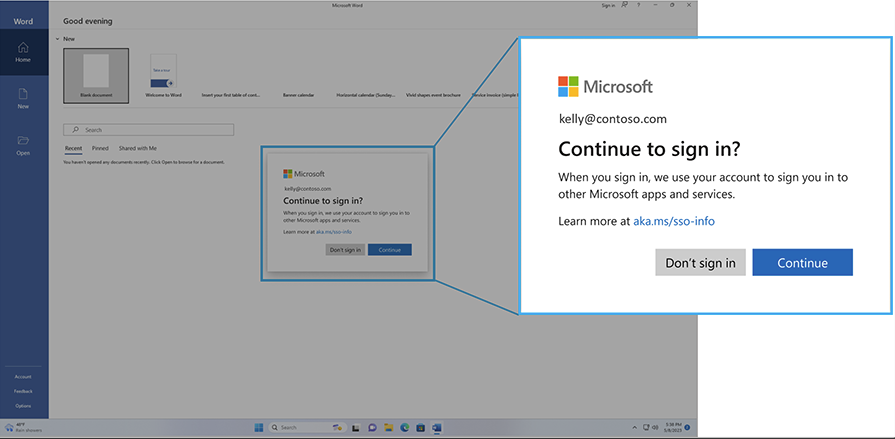
Since the introduction of DMA SSO compliance in Windows, many organizations have struggled with the “Continue to sign in” prompt that disrupts the seamless Single Sign-On experience. As a result, many admins chose to disable DMA-SSO altogether to restore the user experience. A huge thanks to Rudy for reverse-engineering the behavior, documenting the findings, and sharing practical solutions with the community.
Disabling DMA SSO compliance to fix the Continue to Sign in
Continue to Sign In Prompt and the Hidden JSON behind it!
Note: While Microsoft continues to evolve the DMA-SSO experience, Rudy’s solution remains valid for unmanaged devices. At the time of writing, Hybrid Joined devices are still treated as unmanaged in this context, which means the issue and its corresponding workaround may still apply.
Supported way of preventing the DMA-SSO Popup!
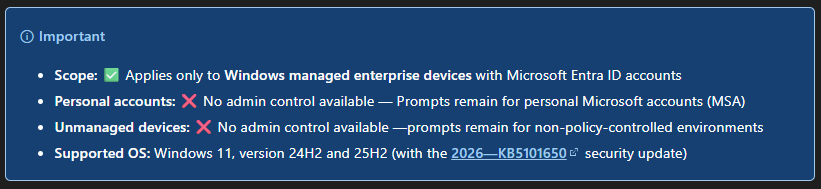
Microsoft has introduced a new admin-controlled SSO setting for Windows 11 managed devices. Starting with the July 2026 security update (KB5101650) for Windows 11 24H2 and 25H2, administrators can suppress the new Microsoft account SSO consent prompt and automatically approve Windows Single Sign-On for Entra ID users by deploying the registry value: HKLM\SOFTWARE\Policies\Microsoft\Windows\AAD\AutoAcceptSsoPermission=1.
This change was introduced following updates in the EEA, where users are now prompted before Windows shares their sign-in credentials with other Microsoft applications and services. The new policy restores a seamless enterprise SSO experience on managed Entra ID devices, while leaving prompts intact for personal Microsoft accounts and unmanaged devices. The setting can be deployed through Intune, Group Policy, Configuration Manager, or any registry-based management solution.
Source: Now available: Admin control for SSO prompts in Windows
Source: Admin Control for SSO prompts – Microsoft Entra ID | Microsoft Learn
Deploy the Setting
Although Microsoft has provided the setting, it is not (yet) accessible via the Intune Settings Catalog, and there is currently no policy supported by ADMX. In Intune, this can be delivered through a Remediation, a PowerShell script (generally not the preferred approach), or as a Win32 application (IntuneWin) for a more controlled deployment and detection experience.
Detection
GitHub: scripts/IntuneScripts/AutoAcceptSSO/Detect_AutoAcceptSSO.ps1 at main · j0eyv/scripts
<# .SYNOPSIS Intune Proactive Remediation - Detection script Checks HKLM\SOFTWARE\Policies\Microsoft\Windows\AAD -> AutoAcceptSsoPermission (DWORD) = 1
.NOTES Exit 0 = Compliant (no remediation needed) Exit 1 = Non-compliant (remediation will run) #>
$RegPath = ‘HKLM:\SOFTWARE\Policies\Microsoft\Windows\AAD’ $ValueName = ‘AutoAcceptSsoPermission’ $Expected = 1
try { $current = Get-ItemProperty -Path $RegPath -Name $ValueName -ErrorAction Stop | Select-Object -ExpandProperty $ValueName
if ($current -eq $Expected) {
    Write-Output "Compliant: $ValueName = $current"
    exit 0
}
else {
    Write-Output "Non-compliant: $ValueName = $current (expected $Expected)"
    exit 1
}
} catch { Write-Output “Non-compliant: $ValueName not found at $RegPath” exit 1 }
Remediation
GitHub: scripts/IntuneScripts/AutoAcceptSSO/Remediate_AutoAcceptSSO.ps1 at main · j0eyv/scripts
<# .SYNOPSIS Intune Proactive Remediation - Remediation script Sets HKLM\SOFTWARE\Policies\Microsoft\Windows\AAD -> AutoAcceptSsoPermission (DWORD) = 1
.NOTES Exit 0 = Remediation succeeded Exit 1 = Remediation failed #>
$RegPath = ‘HKLM:\SOFTWARE\Policies\Microsoft\Windows\AAD’ $ValueName = ‘AutoAcceptSsoPermission’ $Value = 1
try { if (-not (Test-Path -Path $RegPath)) { New-Item -Path $RegPath -Force -ErrorAction Stop | Out-Null }
New-ItemProperty -Path $RegPath -Name $ValueName -Value $Value -PropertyType DWord -Force -ErrorAction Stop | Out-Null

# Verify
$current = Get-ItemProperty -Path $RegPath -Name $ValueName -ErrorAction Stop |
    Select-Object -ExpandProperty $ValueName

if ($current -eq $Value) {
    Write-Output "Remediation succeeded: $ValueName = $current"
    exit 0
}
else {
    Write-Output "Remediation failed: $ValueName = $current (expected $Value)"
    exit 1
}
} catch { Write-Output “Remediation failed: $($_.Exception.Message)” exit 1 }
Intune
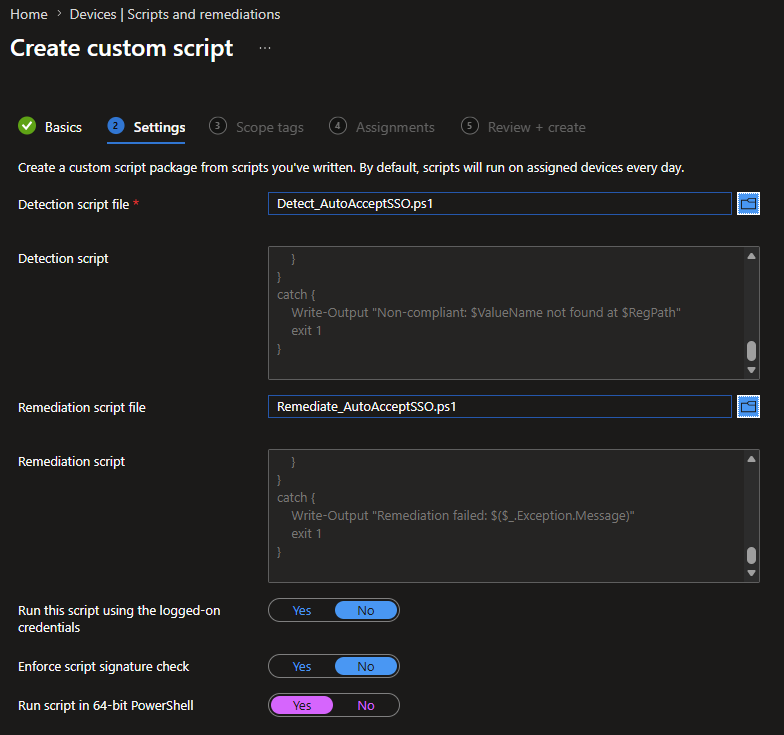
- Go to the Intune admin center (https://intune.microsoft.com).
- Navigate to Devices > Scripts and remediations > Remediations.
- Click Create.
- Give the Remediation a common name
- Import the Detection & Remediation script
- Run this script using the logged-on credentials: No
- Enforce script signature check: No
- Run script in 64-bit PowerShell: Yes
⚠️ Note: The script writes to HKLM, so it must run in the SYSTEM context. Make sure Run this script using the logged-on credentials is set to No. Also enable 64-bit PowerShell.
Written by Joey Verlinden
Back to all articles