Create a Dev Drive (Automated)

Development workloads can be surprisingly storage intensive. Cloning repositories, restoring packages, compiling applications, and continuously generating intermediate files all create significant file-system activity. Therefore, Dev Drive could help resolve many of the performance issues you’re experiencing.
What is a Dev Drive?
Dev Drive is a specialized storage volume in Windows 11 that is optimized for developer workloads. Instead of using NTFS, which is normally used for the Windows system drive and other fixed volumes, Dev Drive uses the Resilient File System.
ReFS gives Dev Drive access to file-system capabilities and optimizations designed for workloads involving large source trees, package caches, build artifacts, and frequent file changes. Windows also assigns a Dev Drive-specific designation when the volume is formatted. An existing regular volume cannot simply be converted into a Dev Drive afterward
Prerequisites
According to Microsoft, the device must meet the following prerequisites:
- Windows 11 build 10.0.22621.2338 or later
- At least 8 GB of memory, with 16 GB recommended
- At least 50 GB of free disk space
- Local administrator permissions when creating or formatting the volume
Dev Drive is available across Windows editions, but enterprise-managed devices may require an administrator to explicitly enable the feature before users can create a volume.
Note: A reboot may also be required after installing a Windows update before the feature becomes available.
What should be stored on a Dev Drive
Microsoft positions Dev Drive primarily for:
- Source-code repositories
- Project files
- Package caches
- Build output
- Intermediate build files
These are generally replaceable or recoverable development assets. Source code should normally also exist in a version-control platform, while packages and build output can typically be downloaded or regenerated.
What should NOT be stored on a Dev Drive
A Dev Drive should not be treated as a general-purpose data volume. Avoid using it as the primary location for:
- Business documents
- Personal data
- Unique files without backup
- Sensitive exports
- User profiles
- General application data
- Long-term archives
Developer tools and SDKs may technically support installation on a Dev Drive, but Microsoft recommends evaluating the security and isolation implications first. The Defender behavior for binaries on a Dev Drive can differ from a regular system or application directory.
Create a Dev Drive manually
Users can create a Dev Drive in several ways:
- Using a new virtual hard disk
- Resizing an existing volume
- Using unallocated disk space
- Formatting a suitable volume from the command line or PowerShell
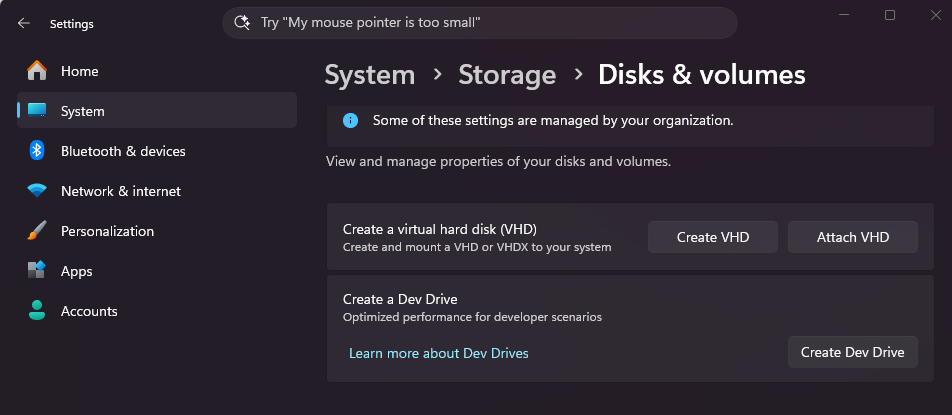
The Windows Settings interface is available under:
Settings > System > Storage > Advanced storage settings > Disks & volumes
From there, the user can select Create Dev Drive, provided the feature is enabled by the organization.
Configure a Dev Drive with Intune
For enterprise-managed devices, Dev Drive can be configured through a Settings Catalog profile in Microsoft Intune. This only configures the Dev Drive; it does not create one. Since creation requires local administrator privileges, we let Intune handle that part.
Create a new configuration profile with:
- Platform: Windows 10 and later
- Profile type: Settings catalog
- Path: Administrative Templates > System > Filesystem
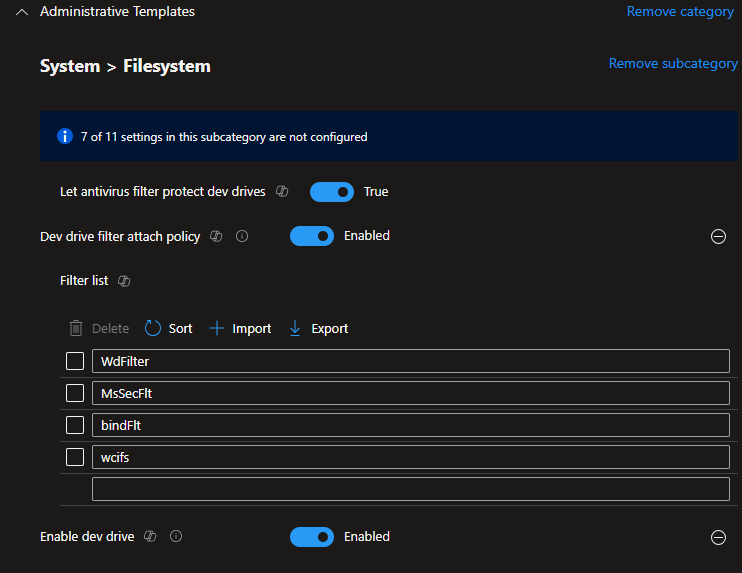
Microsoft documents these settings as the supported Intune control path for enabling Dev Drive and managing its antivirus and filter behavior.
Note: A preconfigured Intune policy with these settings can be found here: scripts/IntuneScripts/DevDrive/WIN – DevDrive Default Config.json at main · j0eyv/scripts
Automate the Dev Drive creation
Although users can manually create a Dev Drive through Windows Settings, enterprise environments require a more consistent and predictable approach. This PowerShell script automates the entire process. Ensure the Intune policy is deployed and applied before running the creation script. Otherwise, the creation process may fail, or the Dev Drive option may remain unavailable until the policy takes effect.
The script can be deployed as:
- A regular Windows PowerShell script
- An Intune remediation
- A Win32 application
Install script
Creates or reuses **drive.vhdx**, prepares a ReFS Dev Drive, verifies it with **fsutil devdrv query**, and registers a startup scheduled task to mount the VHDX and assign its drive letter after reboot. It writes a detection marker to **HKLM:\Software\CustomDeviceManagement\DevDrive** only after verification and task registration succeed.
By default, the VHDX and logs are stored in **C:\ProgramData\Custom Dev Drive**, with a maximum size of 55 GB and drive letter **V:**. The size is dynamically expanding; the VHDX file grows as data is written.
scripts/IntuneScripts/DevDrive/New-DevDrive.ps1 at main · j0eyv/scripts
Uninstall script
Creates a temporary DiskPart command file, selects **C:\ProgramData\Custom Dev Drive\drive.vhdx**, and detaches it. It then attempts to remove the drive directory, unregisters the **Mount Dev Drive** scheduled task, and removes the Dev Drive detection registry value and key.
The removal script has no parameters and is hard-coded to the installer’s default **DrivePath**. It does not use recursive deletion; because the directory normally contains the VHDX and logs, its directory removal may fail, leaving those files in place. The VHDX is detached, not explicitly deleted.
scripts/IntuneScripts/DevDrive/Remove-DevDrive.ps1 at main · j0eyv/scripts
Note: The uninstall script is forked from Lawndog. See his repository for multiple DevDrive scripts. Source: Scripted Dev Drive Setup
Sources:
Written by Joey Verlinden
Back to all articles